The song editor
Genie chat
Talk a song through with Genie, a co-writer that can see your lyrics, check rhymes and syllables, and suggest edits you apply with one click.
Genie is a chat that lives beside your song. Ask it about a line, tell it where you are stuck, or ask for a way into the next verse. It reads the song as it is right now, so you never have to paste your lyrics in.
It is built to help you write your song, not to write it for you. Expect questions, options and short notes on what is working. Ask for a whole verse and it will write one, but it will not volunteer it.
Opening Genie#
Any of these opens the Genie chat in the right-hand panel:
- The Genie icon at the top of the column of icons on the right edge of the window.
- The floating genie in the bottom corner of the lyrics.
- Ask Genie in the toolbar that appears over a selection. The selected lines go with your next message.
- Not sure where to start? on Home, which opens a new song with your first message already sent.
Click the Genie icon again to close the panel.
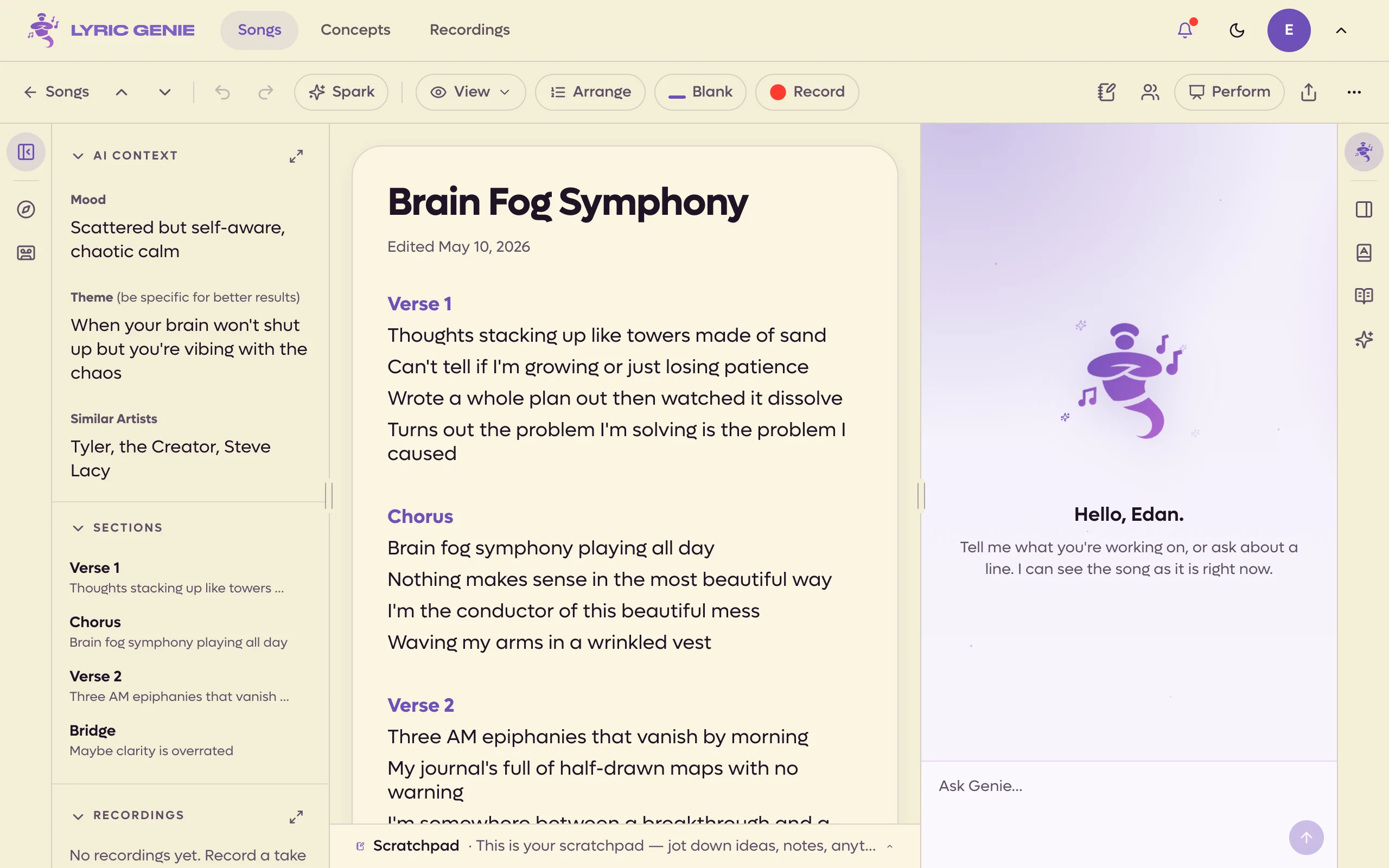 12
12
- 1Click again to close
- 2Ask about the song. Genie sees it as it is now
One chat per song#
Each song has its own chat, and it is still there when you come back. Your chat on a shared song is yours alone: co-writers have their own, and do not see what you asked.
The chat is on the web app only for now. The iOS app does not show it.
What Genie can see#
Every message you send carries a snapshot of the song:
- the title and the AI Context,
- your lyrics,
- on a shared song, your co-writers' tabs and the Master,
- the scratchpad,
- your AI Style guidance and words to avoid.
It always reads the latest version, so if you rewrote a line since your last message, Genie sees the new one.
Asking about particular lines#
Select lines in your lyrics while the Genie panel is open, or use Ask Genie on a selection, and they are attached to your next message. They show above the message box with a paperclip, and Genie takes your message to be about them. The × beside them takes them off again.
Rhymes and syllable counts#
When Genie talks about rhymes or syllables, it does not guess. It looks rhymes up in the same engine as the rhyme sheet, and counts syllables with the app's own counter, before it answers. While it does, the panel says what it is checking, such as Checking rhymes for "noon".
Edit cards#
When Genie suggests a concrete change, it comes as a card rather than as text for you to copy. A card can replace a line, add a line after another, add lines at the end, or change the title or one of the AI Context fields. The old text is struck through above the new.
Nothing changes until you click Apply.
- Apply makes the change. It is one step, so Undo takes it back.
- Dismiss sets the card aside.
- Apply all appears when a reply has more than one card.
- If the line appears more than once in your lyrics, the card offers Apply to first or Apply to all.
If you have changed the line since Genie suggested the edit, the card says so rather than guessing where it should go. Undo an applied edit and the card offers Apply again.
Edits only apply to your own tab. On a co-writer's tab or the Master, the cards are there to read.
Reply chips#
When there is an obvious next step, Genie offers two or three short replies under its message. Click one to send it as it is, or click the pencil beside it to put it in the message box and change it first.
Handing off to Wish Workshop#
Ask for several versions of a line and Genie may offer a Wish Workshop card instead of a long list. Open in Wish Workshop opens it with those lines selected and the wish already running. See Wish Workshop.
Chime-ins#
Now and then Genie offers a short nudge at a natural pause:
- when you come back to a song nobody has touched in a few weeks,
- when you have sat on an empty section for a while,
- when you have just finished a section.
It appears as a bubble beside the floating genie, or beside the Genie icon if the floating genie is off. Nothing is sent until you click it, and then it opens the chat with that question asked. Ignore it and it fades. You get at most one in a browser session, and never while you are typing.
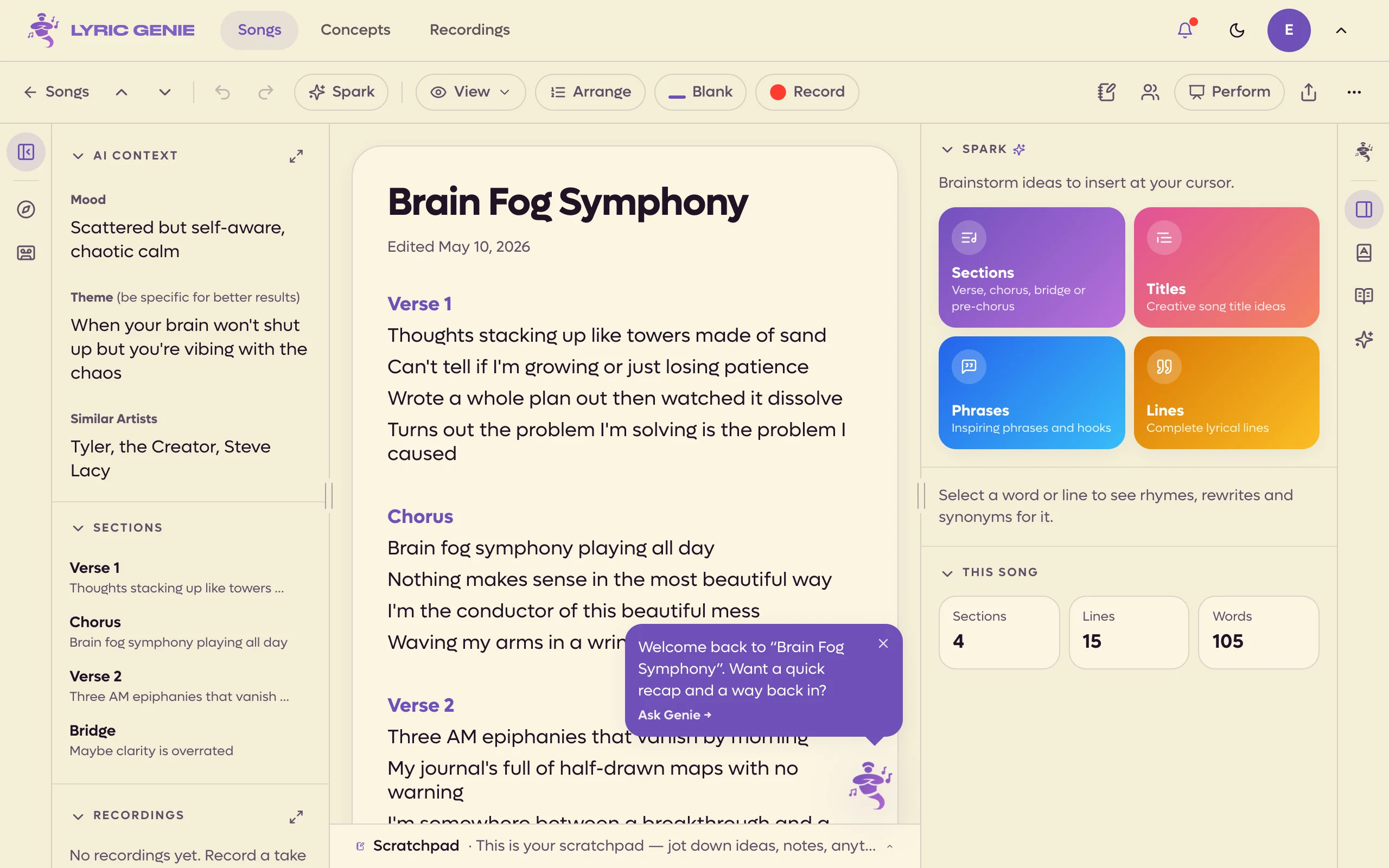 12
12
- 1Nothing is sent until you click
- 2Just hides it
The two Genie settings#
Both are in Settings, under Editor, and both are on to begin with. On a computer, open Settings from the avatar menu at the top right: the avatar menu → Settings. In a phone browser it is the last tab in the bar along the bottom.
| Setting | What it does |
|---|---|
| Floating Genie | Shows the genie in the corner of the song editor. Genie stays in the right panel either way. |
| Genie can chime in | Allows the nudges above. |
You can also hide the floating genie from the editor itself: point at it and click the small ×. Turn it back on from the avatar menu → Settings.
How Genie counts toward your plan#
On the free plan, each message to Genie uses one of your 7 free AI calls, the same allowance the rest of the app draws on.
A message Genie fails to answer is not counted. Send a lot in a row and it asks you to wait a minute before the next one.
The numbers for the rest of the app are on Plan limits.
Guided Start#
Guided Start is the song wizard as a conversation with Genie. It asks about the song you want to write, fills in the AI Context from your answers, then offers titles and opening lines.
Starting it#
Click New Song. A blank song opens and asks how you want to start:
- Guide me opens Genie and begins the questions.
- Start from scratch gives you the blank page, and points out where Genie is in case you want it later.
On a song you have barely started, Genie also offers Guide me through starting this song when you open the chat. It goes once the song has four lyric lines, or once the mood, theme and similar artists are all filled in. It is not offered on shared songs.
The questions#
Genie asks up to three questions, one at a time:
- What's the mood? Pick up to three.
- What's the theme? One sentence on what happens.
- Similar artists? Pick up to two.
Each comes with suggestion chips. Click chips to fill the message box, type your own answer, or mix the two, then click Next. More ideas deals a new set of chips, and Skip moves on without an answer. Any question the AI Context already answers is skipped.
The questions themselves cost nothing. Each answer goes straight into the song's AI Context.
Titles#
Genie then brainstorms title ideas from your answers. Click one and then Next, or type a title of your own. If the song already has a title of yours, you can keep it.
Brainstorm more titles asks for another set. Free accounts can do this once per Guided Start. Skip titles jumps to the end.
Picking a title sets it as the song's title. If the lyrics are empty, it also lays down a section skeleton: Verse 1, Pre-chorus, Chorus and Verse 2.
Lines#
Last, Genie offers lines that go with the title. Click any to add it under Verse 1. Click Done when you have what you want, or Skip lines.
Genie wraps up with a summary and reply chips such as Help me write the first verse, and from there it is an ordinary Genie chat.