Starting a song
The song wizard
A guided way to start a song. Answer three questions and Lyric Genie hands you a title and some phrases to begin from.
Showing the iOS appweb app
Starting at a blank page is the hardest part. The song wizard asks three questions, then generates a title and some phrases so there is something on the page before you begin.
Getting there#
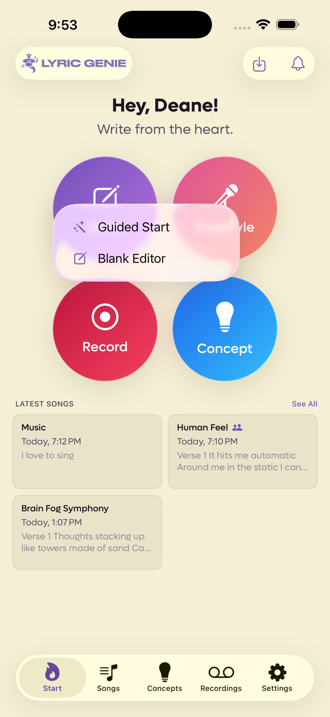
From the Start tab, tap Write and choose Guided Start. The other option, Blank Editor, skips all of this and opens an empty song.
Click New Song on Home or the Songs page. The new song asks how you want to start: Guide me runs the guided start, and Start from scratch skips all of this and gives you an empty page. Closing the question is the same as starting from scratch. The guided start runs as a conversation with Genie in the chat panel beside your lyrics. See Genie.
 12
12
- 1Three questions, then ideas
- 2Straight to an empty page
The three questions#
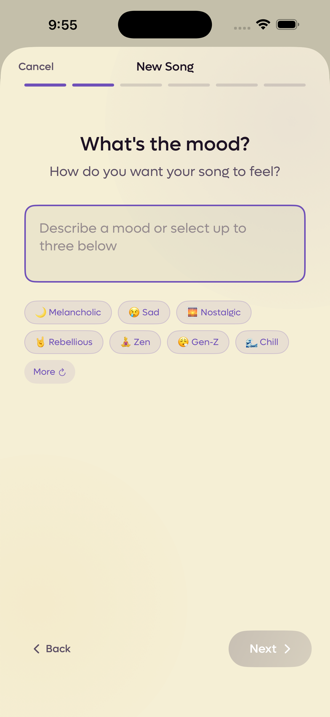
They are the same three fields as the AI Context bar in the song editor, asked one at a time. Whatever you answer is saved to the song, so filling them in here means not doing it later.
Each step offers suggestion chips, and More reshuffles them if none fit. Skip moves past any question you would rather not answer.
On the web Genie asks each question in the chat. Click a chip or type your own answer, use More ideas if none fit, and Skip to pass. If some of the context is already filled in, Genie only asks the missing questions.
 12
12
- 1Type your own, or pick from below
- 2Suggestions, if nothing comes to mind
| Step | What it is asking | How many |
|---|---|---|
| What's the mood? | How the song should feel. | Up to three. |
| What's the theme? | What happens in it, in a sentence. | One. |
| Similar Artists | Who inspires the sound. | Up to two. |
Then it sparks#
With your three answers in hand, the wizard generates ideas from them. This step is called Spark, and it comes in two parts.
Titles#
 12
12
- 1Pick one, or none
- 2A fresh batch, same brief
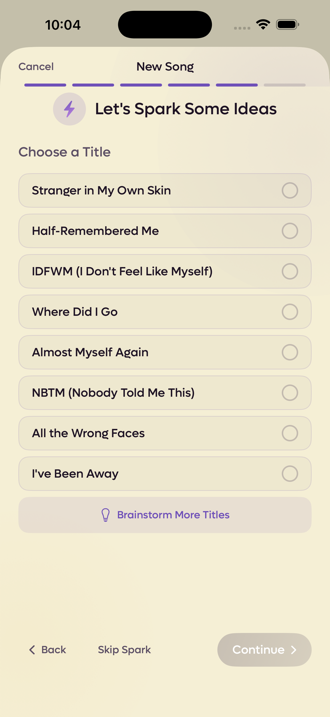
Eight at a time. Brainstorm More Titles replaces them with a new set from the same brief, so you can keep going until something lands. You do not have to take one.
On the web Genie lists the titles in the chat. Brainstorm more titles adds another batch, and Skip titles moves on. Picking one sets it as the song's title and, if the lyrics are empty, drops a section skeleton in.
Phrases#
 12
12
- 1Tick as many as you want
- 2They go straight into the lyrics
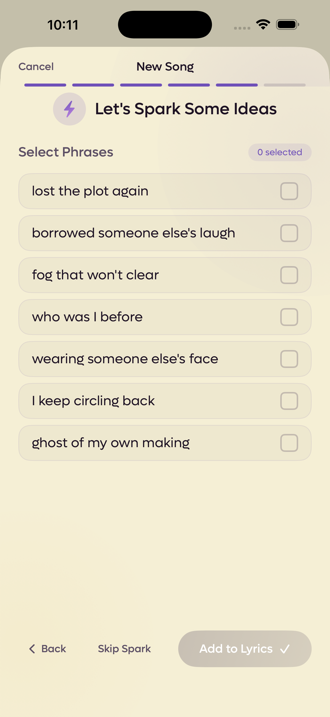
These are fragments rather than finished lyrics: lost the plot again, wearing someone else's face, ghost of my own making. Tick the ones worth keeping and Add to Lyrics drops them into the song.
On the web the lines that go with your chosen title appear as chips. Click one to add it to the lyrics under Verse 1, click Done when you have enough, or Skip lines.
Skip Spark leaves at any point, and you still get a song with your mood, theme and artists filled in.
The same idea, elsewhere#
Spark is not only in the wizard. Open Wish Workshop without selecting any text and you get Creative Spark, which does the same job for a song already under way.
There is also a tool that runs the other way round. Refine Context, the sparkle button on the AI Context bar, takes a rough idea in plain English and generates the mood, theme and artists from it. Spark turns a brief into ideas. Refine Context turns a feeling into the brief.
Two switches on that sheet decide how much of the song it is allowed to build on. Consider Existing Title lets it read the title you already have, and Consider Existing Context Fields lets it read whatever is already in the three fields. Leave both on to refine what you have. Turn both off to start over from the description alone.
There is also a tool that runs the other way round. Refine, beside the AI Context heading in the song's side panel, offers options for the mood, theme and artists, built from what the song already has. It says Suggest while the fields are still empty. Spark turns a brief into ideas. Refine turns a feeling into the brief.
Each field can be kept as it is or left open to change. Type what the song is about, or what you want to change, then apply a whole option, or click single fields to take only those. Talk it through with Genie moves the conversation to Genie instead.
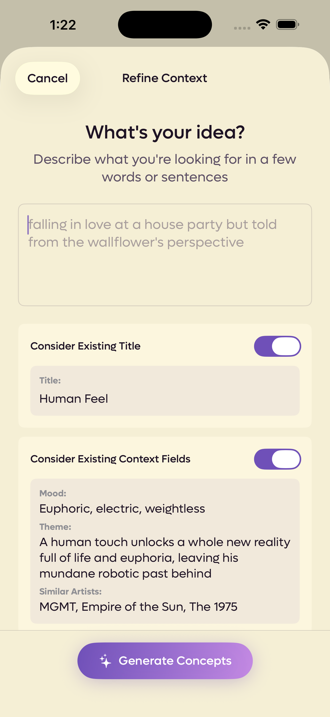
Refine Context then offers you a set of concepts to choose between rather than overwriting anything. Pick one and tap Apply, or New Search to ask again.
What you end up with#
A song in the editor with a title, your three context fields, and any phrases you picked already in the lyrics. Nothing is locked in. The title can be changed, the phrases are ordinary lines you can delete.
If you skipped the title step, the song is called My Song until you rename it.