The five tabs
The Home page
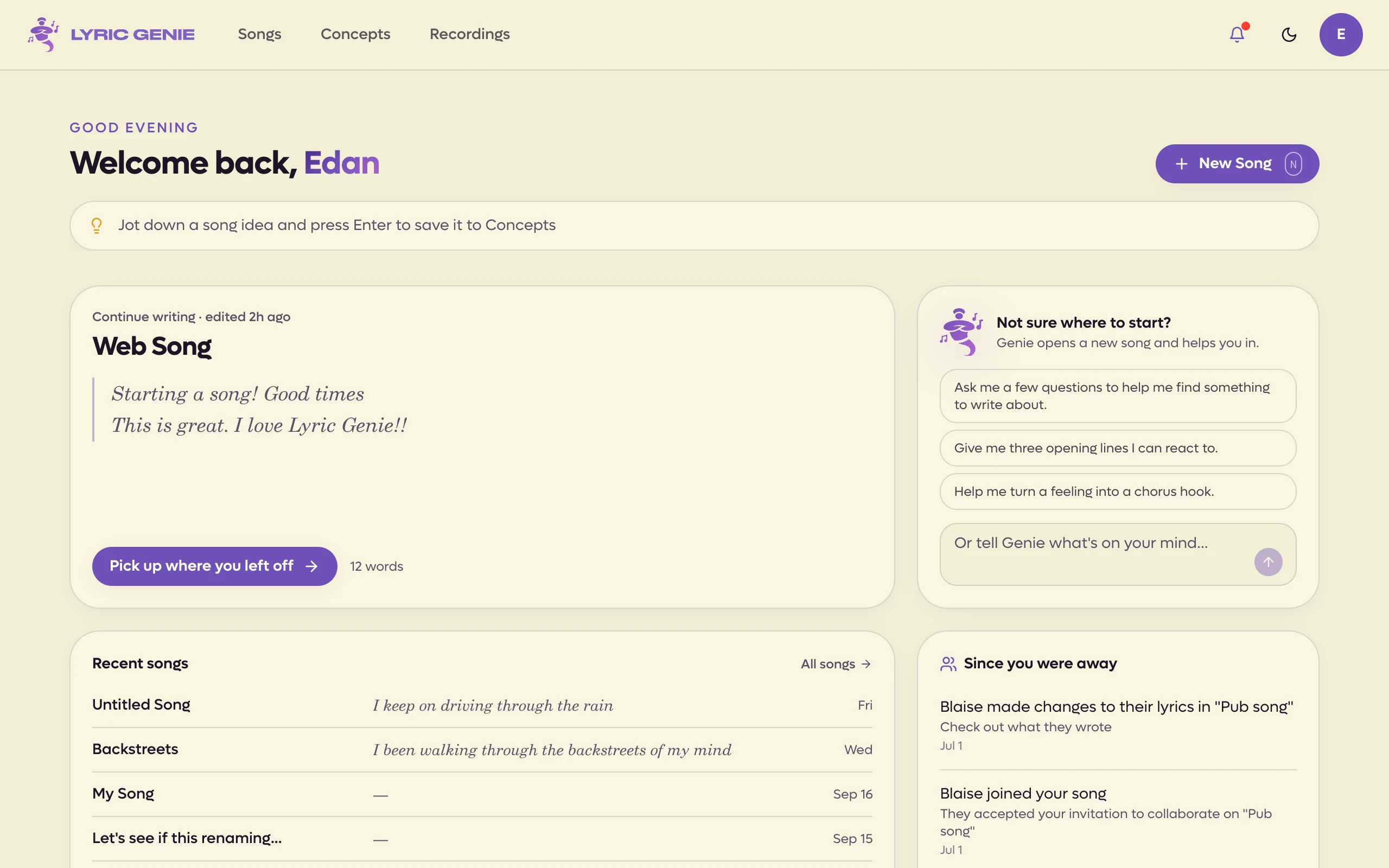
Where the Lyric Genie web app opens. Pick up the song you were writing, catch an idea before it goes, and see what your co-writers did.
Home is the first thing you see when you open Lyric Genie in a browser. It does the job the Start tab does in the iOS app: it puts the song you were last writing in front of you, and gives you a few quick ways into a new one.
To get back to it, click the genie logo at the top left. In a phone browser it is the first tab in the bar along the bottom.
 12345
12345
- 1Or press N
- 2Type an idea, press Enter, it's a concept
- 3The song you last edited yourself
- 4Opens a new song with Genie talking
- 5What co-writers changed
Starting a new song#
New Song, at the top right, opens a blank song and asks how you want to start: Guide me or Start from scratch. See Guided Start.
Jotting down an idea#
The bar under the greeting is for an idea you are not ready to write. Type it and press Enter, and it is saved to Concepts as a new concept, with no dialog to fill in. Saved to Concepts appears for a few seconds, and you can click it to go and see the idea.
Only the title is saved. Add a mood or a theme later from the Concepts page. See Concepts.
Continue writing#
The large card is the song you last edited yourself. An edit a co-writer made does not count, so a shared song they were busy in overnight will not push your own work aside.
It shows the last three lines you wrote, how many words the song has, and the section the lyrics end in. Click Pick up where you left off and the song opens with the cursor back where you left it.
If you have no songs yet, the card says Start your first song instead.
Starting with Genie#
Not sure where to start? sits beside it. Click one of the three suggestions, or type what is on your mind and press Enter. Lyric Genie opens a new song with the Genie chat already open and your message sent.
That message is a real Genie message, so it counts toward your AI use. See Genie chat.
Recent songs#
Your next six most recently edited songs, each with its first line and when it was last changed. A shared song carries a small people icon. All songs opens the full list.
Since you were away#
What your co-writers have done on shared songs: someone accepting an invite, changing lyrics, adding a recording, or changing a title or the AI Context. The four most recent show here.
Click one to open that song. A lyric change opens straight on the tab of the writer who made it.
If none of your songs are shared, the card suggests inviting a co-writer from any song. See Inviting a co-writer.
Ready to write#
Your three most recently changed concepts. New Song on a concept starts a song with its title, mood, theme and similar artists already filled in, and opens it.
The last tile goes to the Concepts page, where you can generate more.
Ideas inbox#
Voice memos you recorded outside a song in the iOS app. Click one to play it right there. The link at the top right opens the Recordings page with all of them. See Recordings.
This month#
The row at the bottom is a quick count:
| Number | What it counts |
|---|---|
| Songs touched this month | Songs edited since the 1st. |
| Songs | Songs in your library, not counting archived ones. |
| Projects | Your projects. |
| AI calls this month / Free AI calls used | Your AI use against your plan's allowance. |
The last one reads AI calls this month on Pro and Free AI calls used on the free plan. The numbers are on Plan limits.