The song editor
Wish Workshop
The AI writing tool in the song editor. What it does to a line you selected, and what it does when you select nothing.
Showing the iOS appweb app
Wish Workshop is the main AI writing tool in the song editor. It helps you rewrite a line, or find new material when you are stuck.
It does two quite different jobs, and which one you get depends entirely on whether you selected any text first. That is the single thing to understand about it.
Open it from the bar along the bottom of the editor. With nothing selected, tap Wish, the lamp. With text selected, tap Rewrite, the first button in the row. Before iOS 2.22 the lamp floated at the bottom right instead.
Click Wish in the song bar, or Rewrite on the selection toolbar. Wish Workshop opens in the right-hand panel next to your lyrics, so the song stays in view while you work. The panel's header has a back arrow instead of a close button, and a button to widen it. On a phone browser it opens as a bottom sheet. The button reads Spark when nothing is selected.
Two ways in#
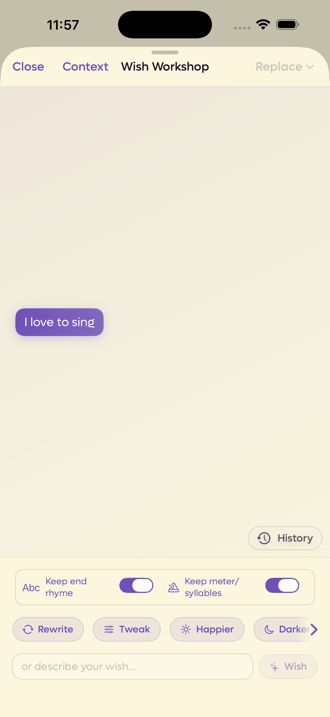
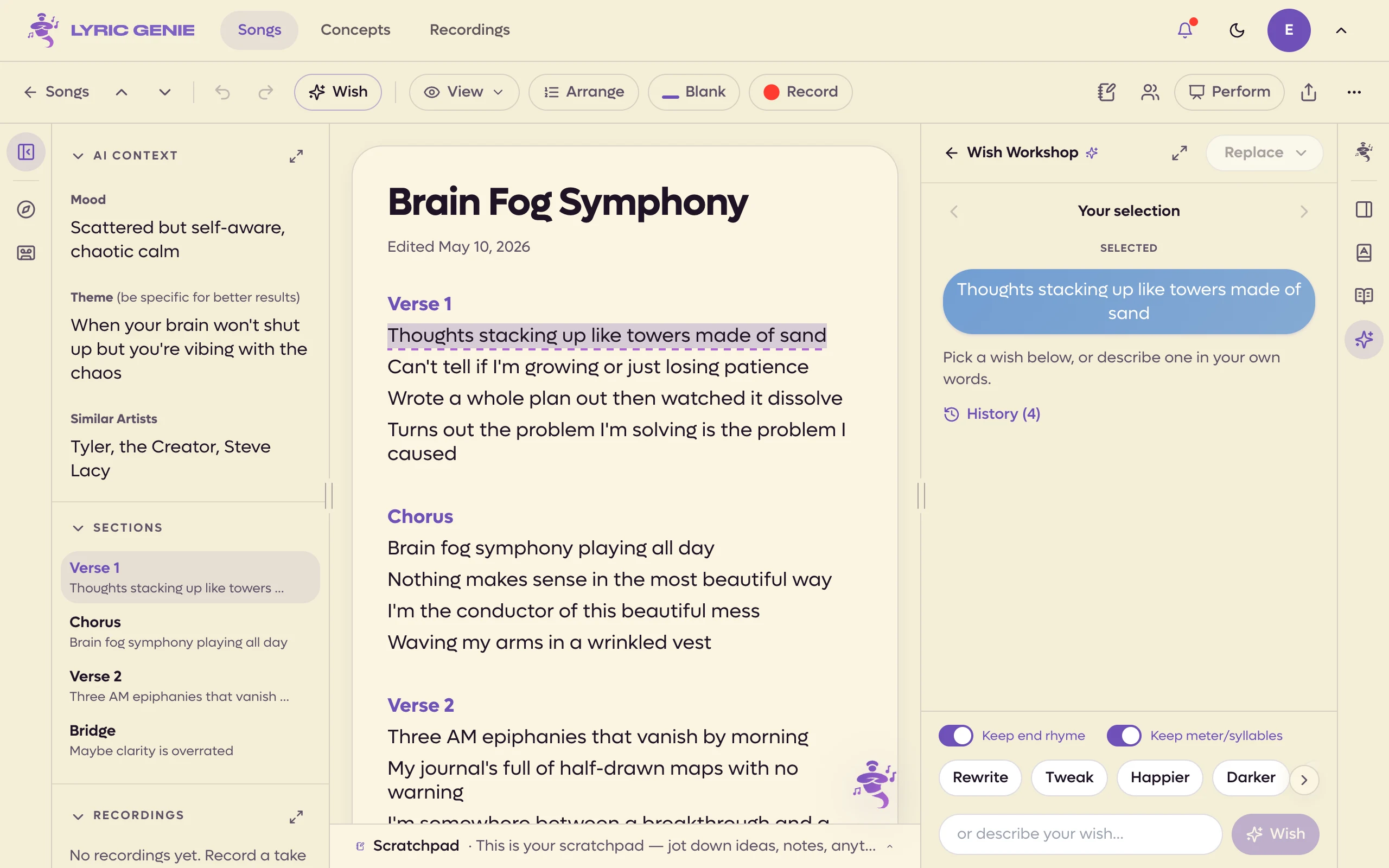
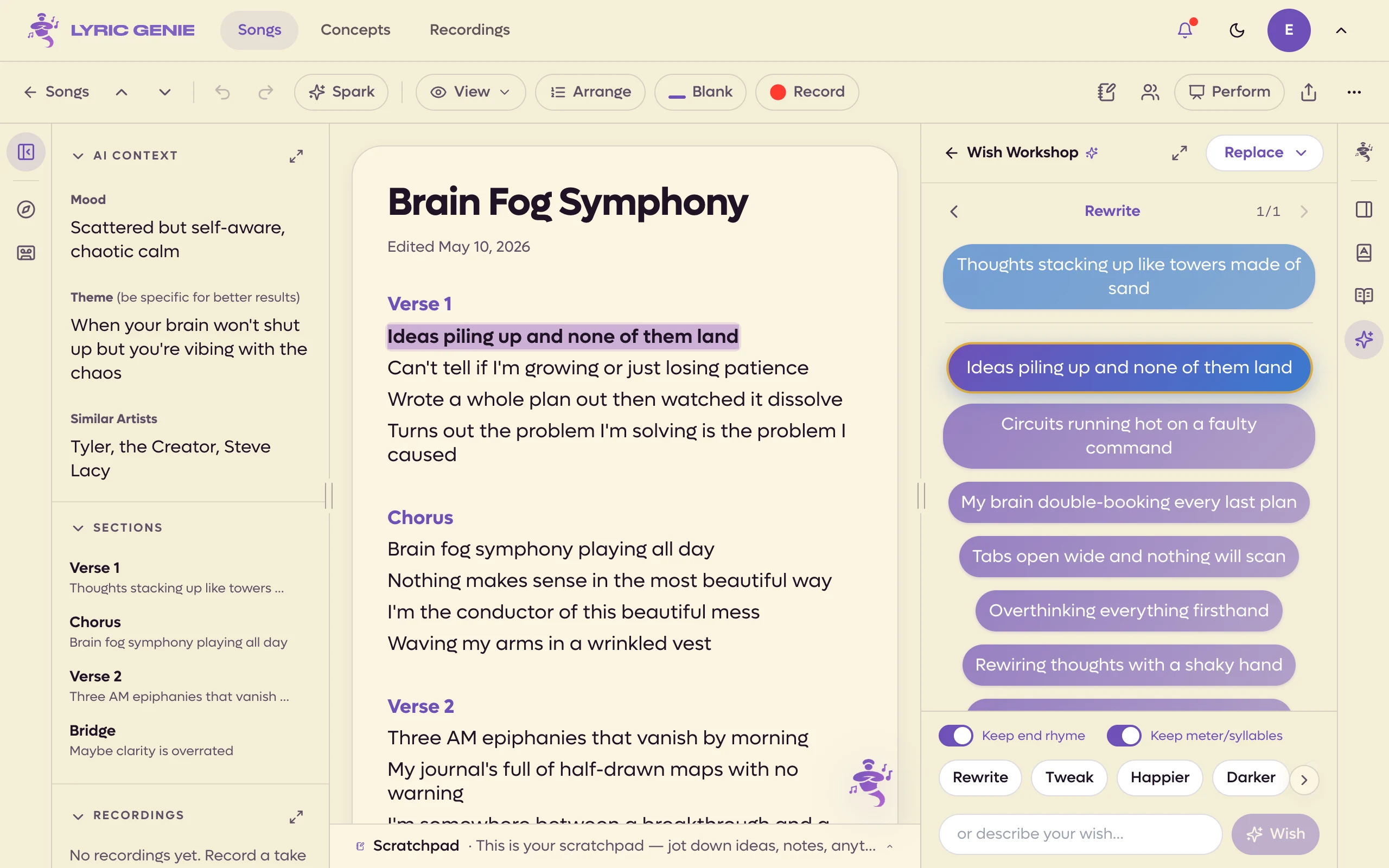
Select a line first and Wish Workshop works on that line. Your selection appears as a purple bubble at the top, the action button reads Replace, and a row of one-tap wishes lights up along the bottom. On the web the selection sits in the panel the same way, and the layout is the same.
 123
123
- 1The line you selected
- 2Constraints. Both are on until you turn them off
- 3One-tap wishes. Swipe for many more
 123
123
- 1The line you selected
- 2Constraints. Both are on until you turn them off
- 3One-click wishes. The arrow scrolls to more
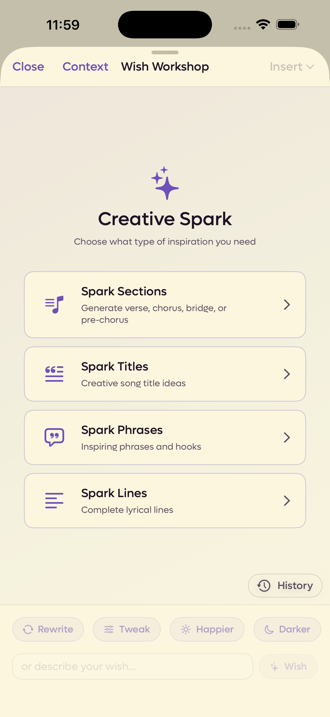
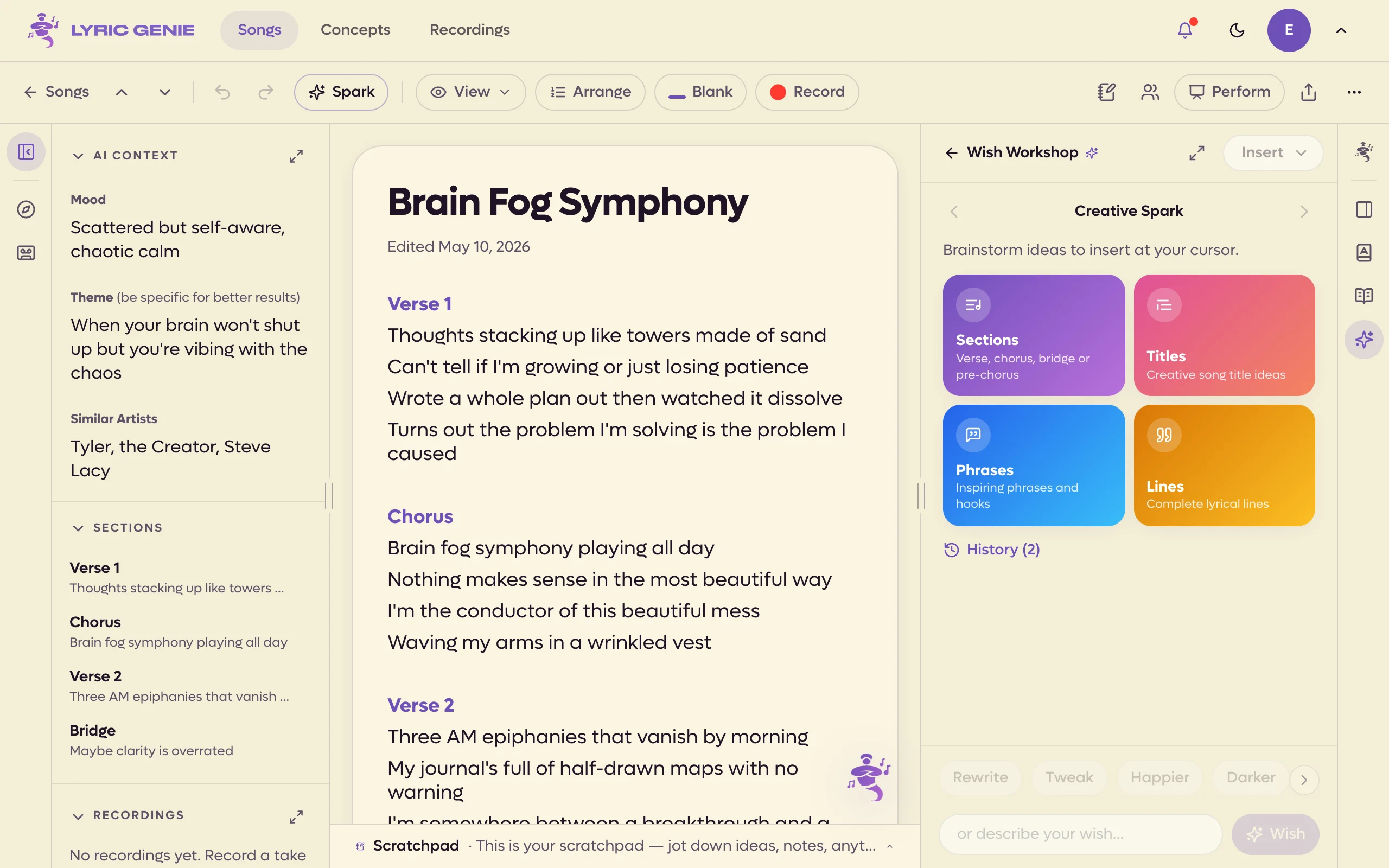
Select nothing and you get Creative Spark instead, which generates new material rather than changing anything you wrote. The action button reads Insert, and the one-tap wishes are greyed out, because there is nothing for them to act on.
The four Creative Spark options appear as tiles. The right panel shows the same tiles whenever nothing is selected, so you can start a Spark without opening Wish Workshop first.
 12
12
- 1Sections, Titles, Phrases or Lines
- 2Inserts at your cursor
It asks for context first#
The first time you open it on a song with no AI Context, Wish Workshop stops and asks for some before it will do anything.
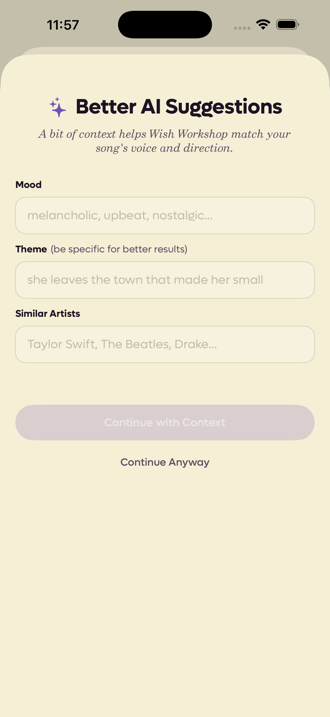
You can tap Continue Anyway and skip it. It is worth a minute of your time instead. These three fields are what the AI reads to work out what your song is supposed to sound like, and the difference between a filled-in song and an empty one is not subtle.
Theme does the most work of the three, and it rewards being specific. The app's own example is a good model: "she leaves the town that made her small" will get you further than "leaving home".
Whatever you enter here is saved to the song, so you are asked once, not every time.
On the web it doesn't stop you. Wish Workshop runs straight away, and the song's AI Context fields open in the left panel beside it, with a note saying better context gets better results. Fill them in there and the next wish uses them. (On a phone-sized window, where only one panel fits, it skips this.)
Rewriting a line#
With a line selected, you have three ways to ask for a change.
Tap a wish. The row along the bottom starts with Rewrite, Tweak, Happier and Darker, and scrolls sideways to around thirty more. They range from tonal (More Vulnerable, More Sarcastic, More Nostalgic) to technical (Make It Rhyme, Easier to Sing, More Alliteration).
Describe what you want. The field at the bottom reads or describe your wish... and takes plain English. Use it when none of the chips is quite the thing.
Set the constraints first. Two toggles sit above the chips, and both are on by default.
| Toggle | What it protects |
|---|---|
| Keep end rhyme | The rhyme at the end of the line survives the rewrite. On a multi-line selection this becomes Keep rhyme scheme. |
| Keep meter/syllables | The new line is singable to the same melody as the old one. |
Those defaults are the right ones most of the time. Turn them off when you want a genuinely free rewrite and you are willing to re-fit the melody.
Lines with blanks#
Select a line that has a blank in it and Wish Workshop fills the blank instead of rewriting the line. Your own words stay as they are, and each result fits the blank's syllable count. When the blank ends the line, the rhyme switch reads Rhyme with and the word it should rhyme with; tap the word to pick another.
Reading a result#
A wish comes back as a stack of options, not one answer.
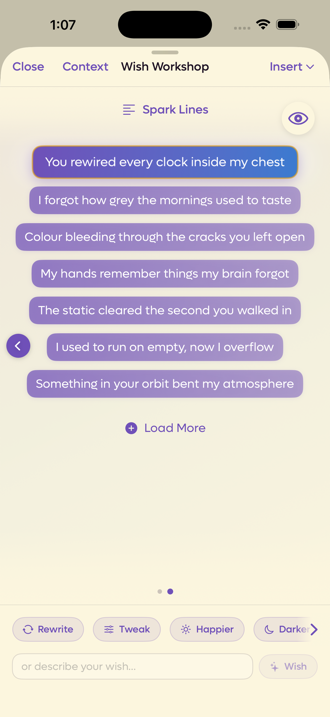 1234
1234
- 1Preview a line in place
- 2Tap one to choose it
- 3Another batch, same wish
- 4More than one page
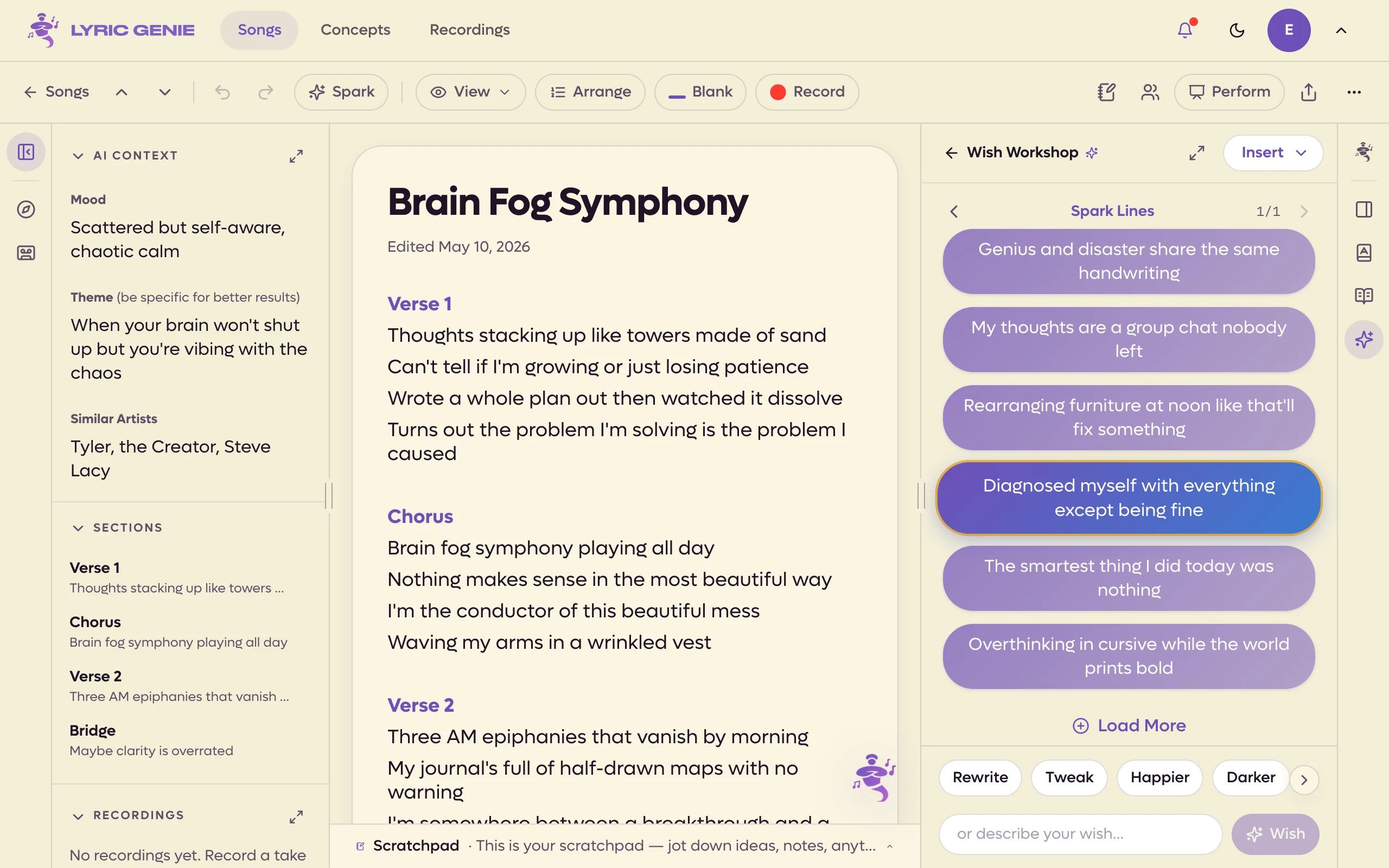 1234
1234
- 1Click one to choose it
- 2Another batch, same wish
- 3Pages of results
- 4Enter runs this
Three things on this screen are easy to miss.
- Load More asks for another batch without spending a new wish on a reworded prompt.
- The dots at the bottom mean there is more than one page of results. Swipe sideways, or use the chevrons at the edges, to move between them.
- The eye button previews the selected line in place, in your lyrics, so you can see it in context before you commit to it.
On the web there is no eye button, because the preview is always on. While Wish Workshop is open, the words it is working on get a moving dashed underline in your lyrics, and the result you pick stands in their place, pulsing, until you press Replace. Pick your original line and the underline comes back. Use the chevrons to move between pages of results. The row of wishes scrolls sideways, with arrows at either end when there are more.
Keyboard. Up and Down move through the results, starting with your original line. Enter runs the default action on the highlighted result. Esc steps back out of the panel. Esc and Enter are ignored while the cursor is in a text field, so typing a wish is safe.
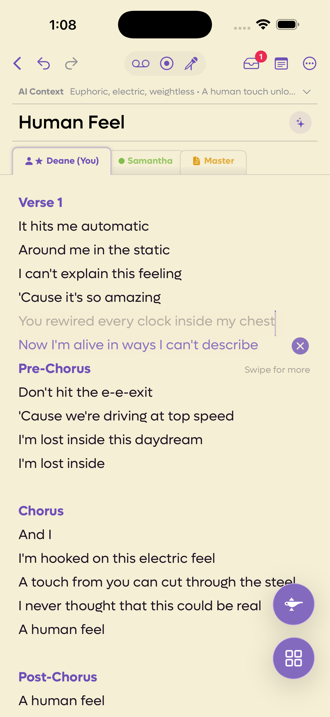 12
12
- 1The line you picked, shown in place
- 2Swipe sideways for the next one
 12
12
- 1The result you picked, standing in for your line
- 2The result you picked
The greyed line is the one you chose and the coloured line under it is the next option. Swipe sideways to walk through them in place, which is a better way to judge a line than reading it on the results screen. On the web, turn on Preview and use the chevrons.
Taking the result#
Nothing changes in your song until you say so. The button at the top right applies the result, and the chevron beside it opens the other options.
- Replace Selection puts the new line where the old one was.
- Insert at Top and Insert at Bottom add it without removing anything.
- Replace Title swaps the song title instead, for a title wish.
- Add to Scratchpad parks it in the Scratchpad to decide later.
- Copy to Clipboard takes it out of the app.
The main button runs the default action for the kind of wish you are in, and Enter does the same. Pick a different action from the menu beside it and it runs, and it becomes the default for that kind of wish (a rewrite, a Spark, a title). The choice is remembered in this browser, not on your account. Wish Workshop stays open after an action, so you can try another result straight away. The option is labelled Copy on the web.
If a result is close but not right, ask again from the same screen. The workshop keeps iterating on the same thread rather than starting over.
Creative Spark#
With nothing selected, you get four options.
| Option | What you get |
|---|---|
| Spark Sections | A complete verse, chorus, bridge or pre-chorus. |
| Spark Titles | Song title ideas. |
| Spark Phrases | Phrases and hooks, not finished lines. |
| Spark Lines | Complete lyrical lines. |
Spark Phrases is the one people underuse. A hook you can build a chorus around is often more useful than a finished chorus you did not write.
History#
History, at the bottom right of the sheet, keeps every wish session for this song. Tap one to reload it, including the results you did not take.
It is per song, so a session you are looking for is in the song it belongs to, not in one long global list. Each entry says how many iterations it holds, and Load More pages further back.
Sessions accumulate. Swipe one away to delete just that thread, which asks first, or use Clear All to empty the song's history. A song with no history yet says Nothing to revisit yet.
When it will not run#
Two different things can stop it, and they look different.
It asks for more to work with. If the song has neither context nor a title, the workshop says so instead of guessing. Fill in a couple of the context fields and try again.
It asks you to upgrade. Wish Workshop needs AI access. Free accounts get a small number of AI calls to try it with, and the upgrade screen appears when those run out.