What you make
Songs
The document you write in, what you can do to one from the list, and what happens to a song you are finished with.
Showing the iOS appweb app
A song is the main document in Lyric Genie. It holds your lyrics, the context the writing tools read, any audio you attach, and, once it is shared, a tab for every writer on it.
What a song holds#
| Part | What it does |
|---|---|
| Title | Names the song everywhere it is listed. The editor can suggest one from your lyrics. |
| Lyrics | The main text, divided into sections by their headers. |
| AI Context | Mood, theme and similar artists. Every AI feature reads these. |
| Scratchpad | A private notepad that saves with the song but is not part of the lyrics. |
| Recordings | Audio attached to this song. See Recordings. |
| Collaborator tabs | One per writer on a shared song, plus Master. |
AI Context is the part people skip and then wonder why the suggestions are bland. It is three short fields, it takes a minute, and it changes the output of every AI feature in the app. The song wizard collects it by asking three questions.
Finding one#
The tab opens on All Songs, and the back arrow beside that title leads to the collections your songs are filed in. Both are covered on The Songs tab.
The page opens on All Songs, and the Library panel beside it lists the collections your songs are filed in. A search field above the list finds songs by title, lyrics, mood, theme, artist or collaborator. Both are covered on The Songs tab.
To find a song from anywhere, press ⌘ K (Ctrl K on Windows) and type a
word from its title or a line in it. See Search everything.
Sorting and selecting#
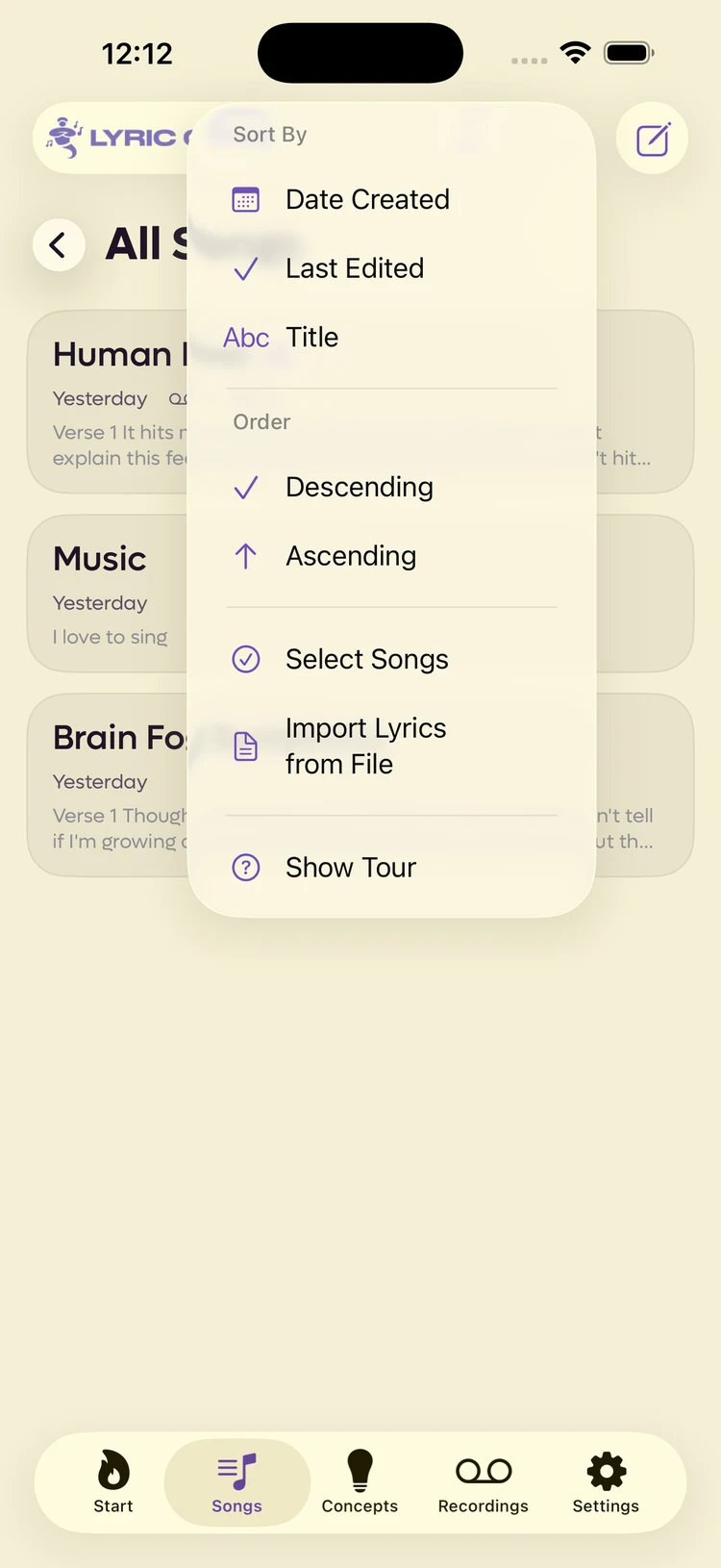
Inside a list, the ⋯ button sorts it and turns on multi-select.
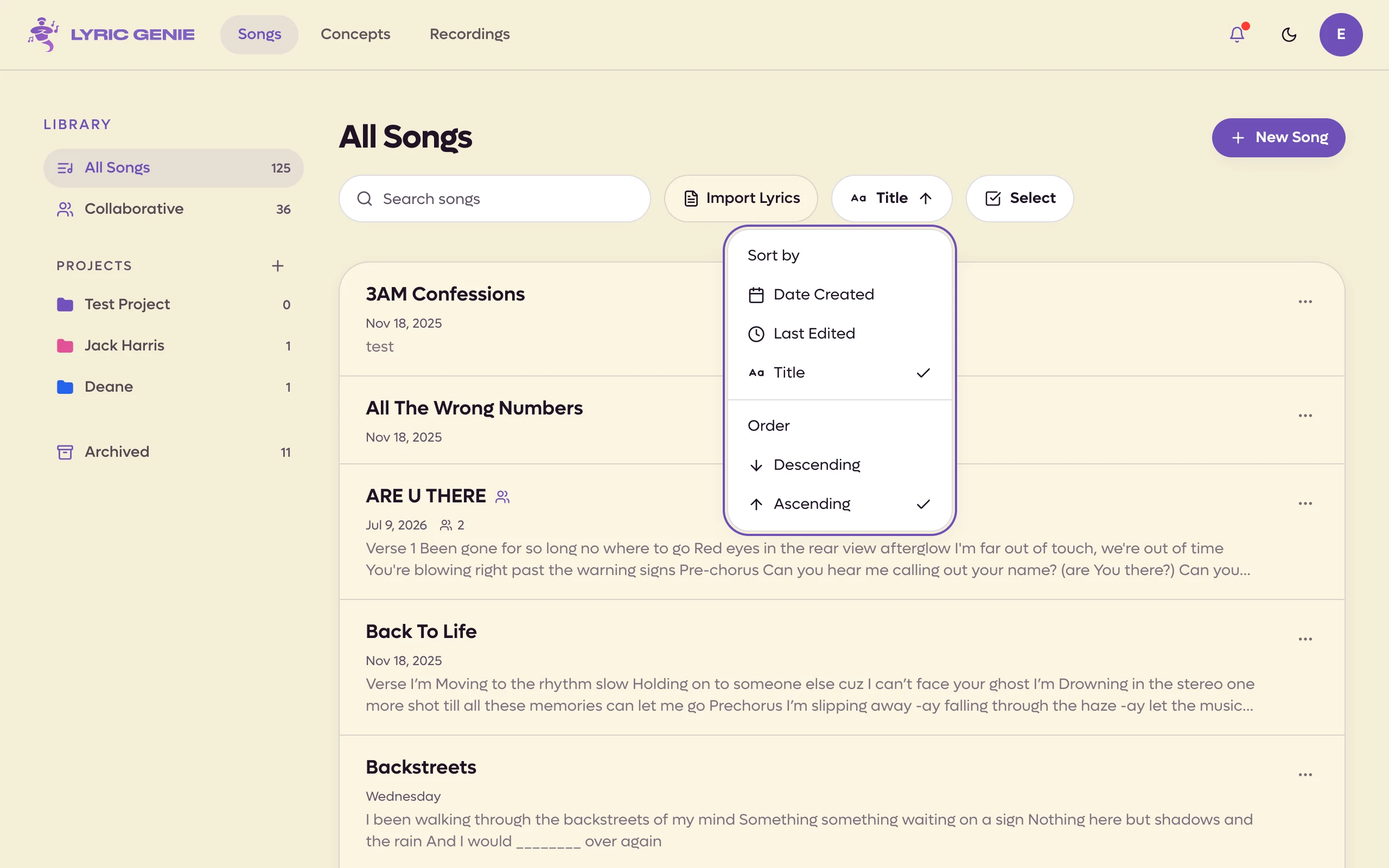
Inside a list, the sort menu above it picks Date Created, Last Edited or Title, ascending or descending. Select beside it picks several songs at once. See The Songs tab.
 123
123
- 1Date created, last edited, or title
- 2Turns on checkboxes
- 3Lyrics you wrote somewhere else
 12
12
- 1Sort by
- 2Order
Import Lyrics from File lives here rather than on the Start tab, which is where people look for it. See Importing files.
Import Lyrics is the button beside the search field. See Importing files.
What you can do to a song#
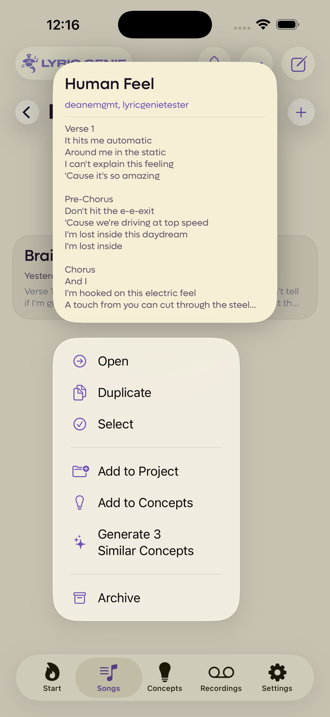
Press and hold any song in a list and the app shows you the lyrics, who is on it, and the things you can do.
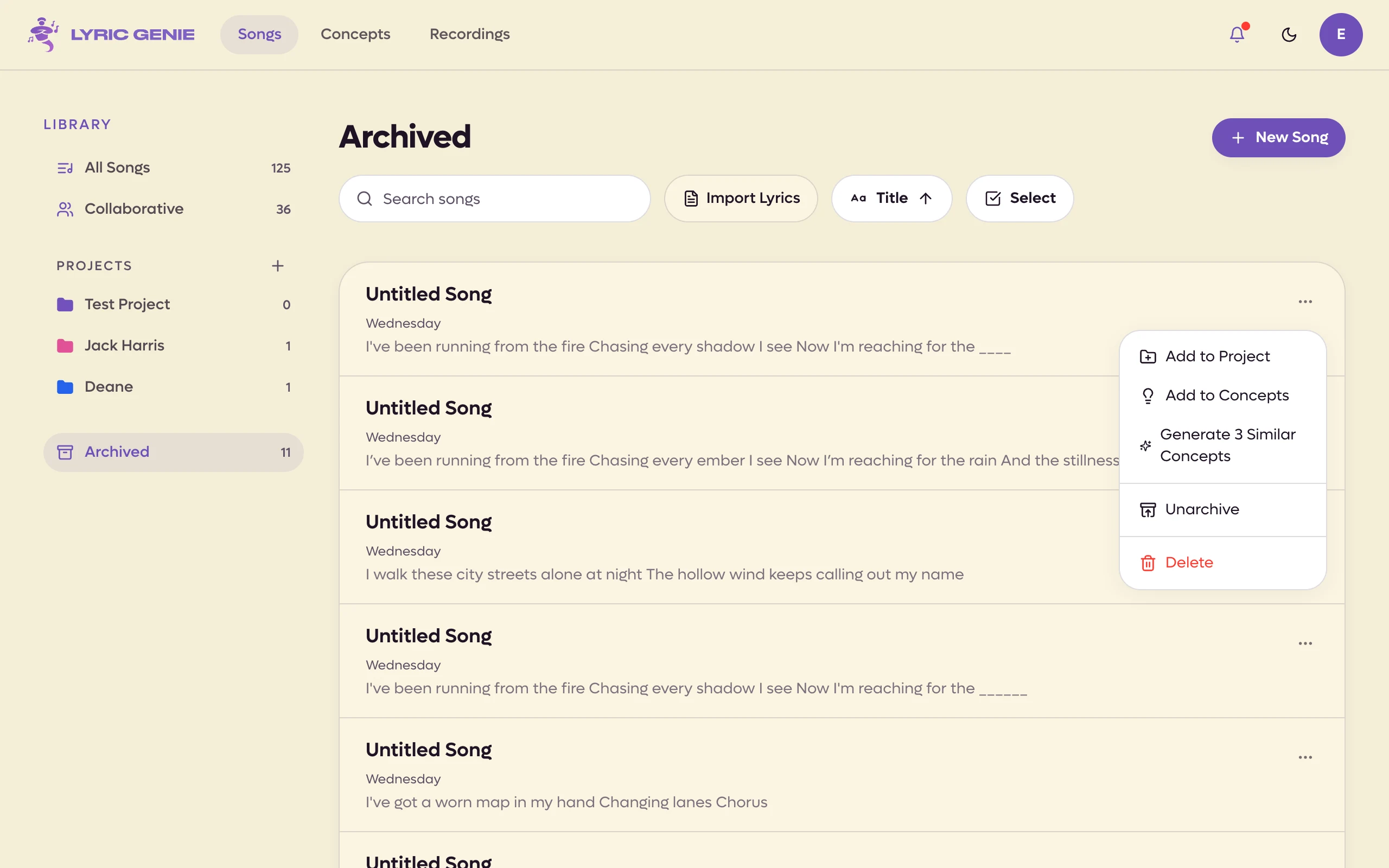
The ⋯ at the right of any song in a list holds the things you can do: Add to Project, Add to Concepts, Generate 3 Similar Concepts, Duplicate as a new song, Archive and, for a song that is only yours, Delete. There is no preview on the web.
 12
12
- 1The lyrics, without opening the song
- 2File it, or turn it back into an idea
Add to Concepts turns the song back into an idea. Generate 3 Similar Concepts reads it and proposes three adjacent ones. Both are covered on Concepts.
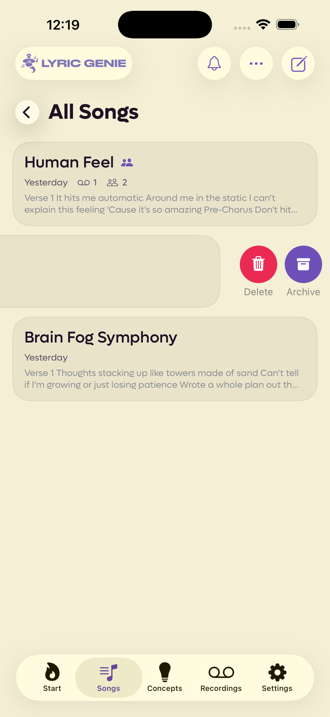
Swiping a song sideways gets to the same two destructive actions faster.
Duplicating a song Web app only#
Duplicate as a new song makes a copy you can rewrite freely, and opens it. It is in the ⋯ menu of a song in the Songs list, and in the song editor's own ⋯ menu. To copy several at once, use Select on the Songs page and click Duplicate.
The copy is a solo song of yours, titled with (Copy) after the name. It takes:
- your lyrics (on a shared song, your own tab),
- the AI Context,
- your scratchpad.
It does not copy your collaborators' tabs, the Master or any recordings.
Archive, not delete#
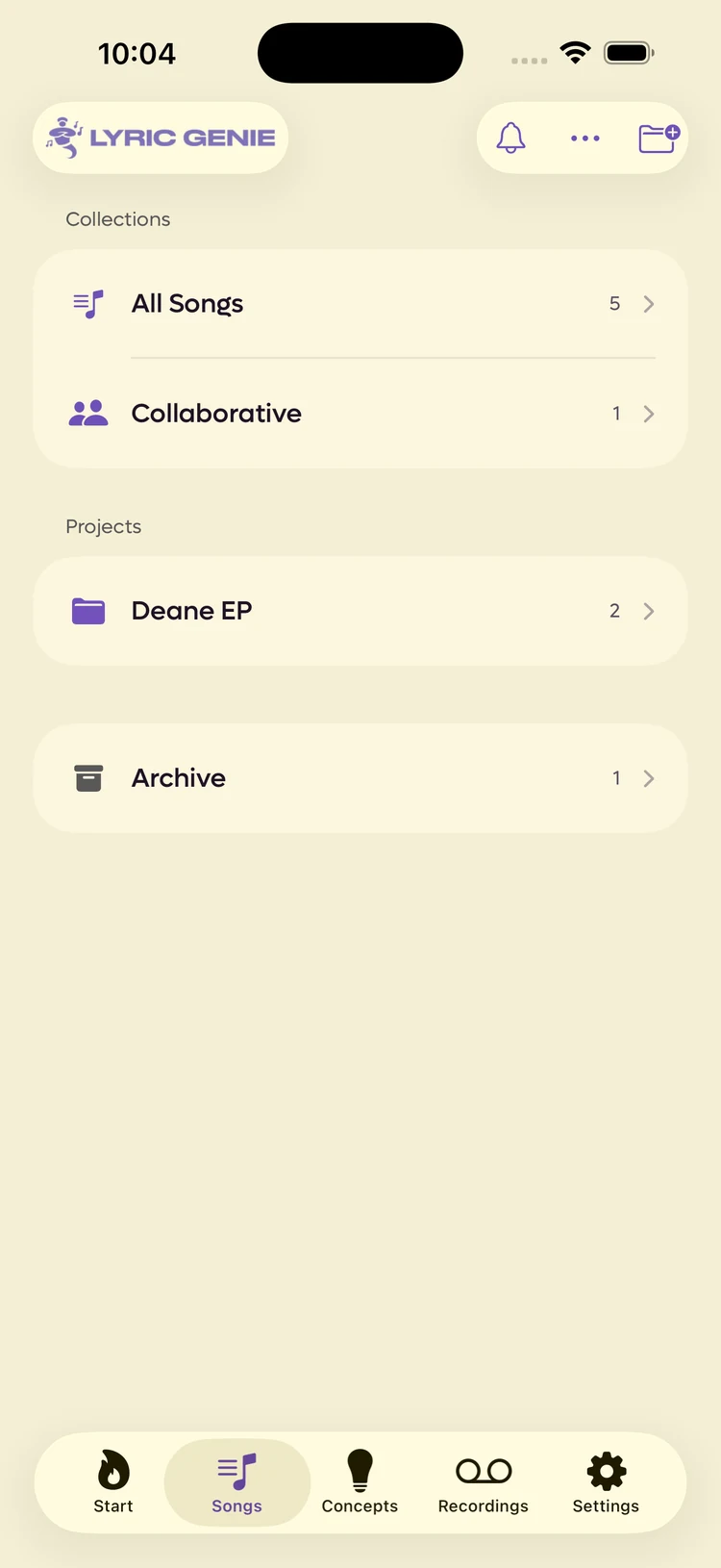
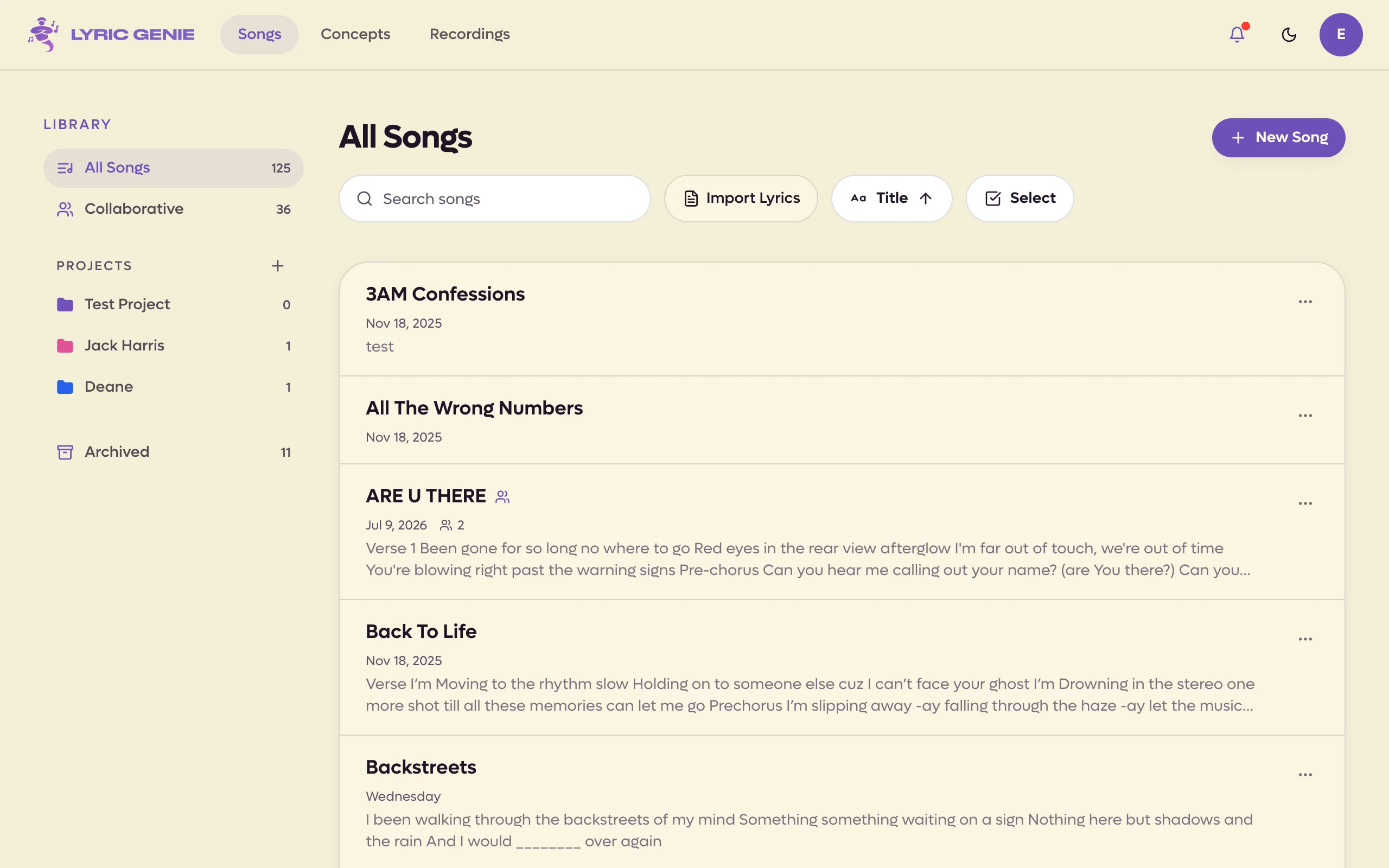
Archive takes a song out of All Songs without destroying anything. An Archive row then appears at the bottom of the collections screen, and the song is in it, with its lyrics, its recordings and its collaborators intact.
 1
1
- 1Only here once you have archived something
 1
1
- 1Archived songs
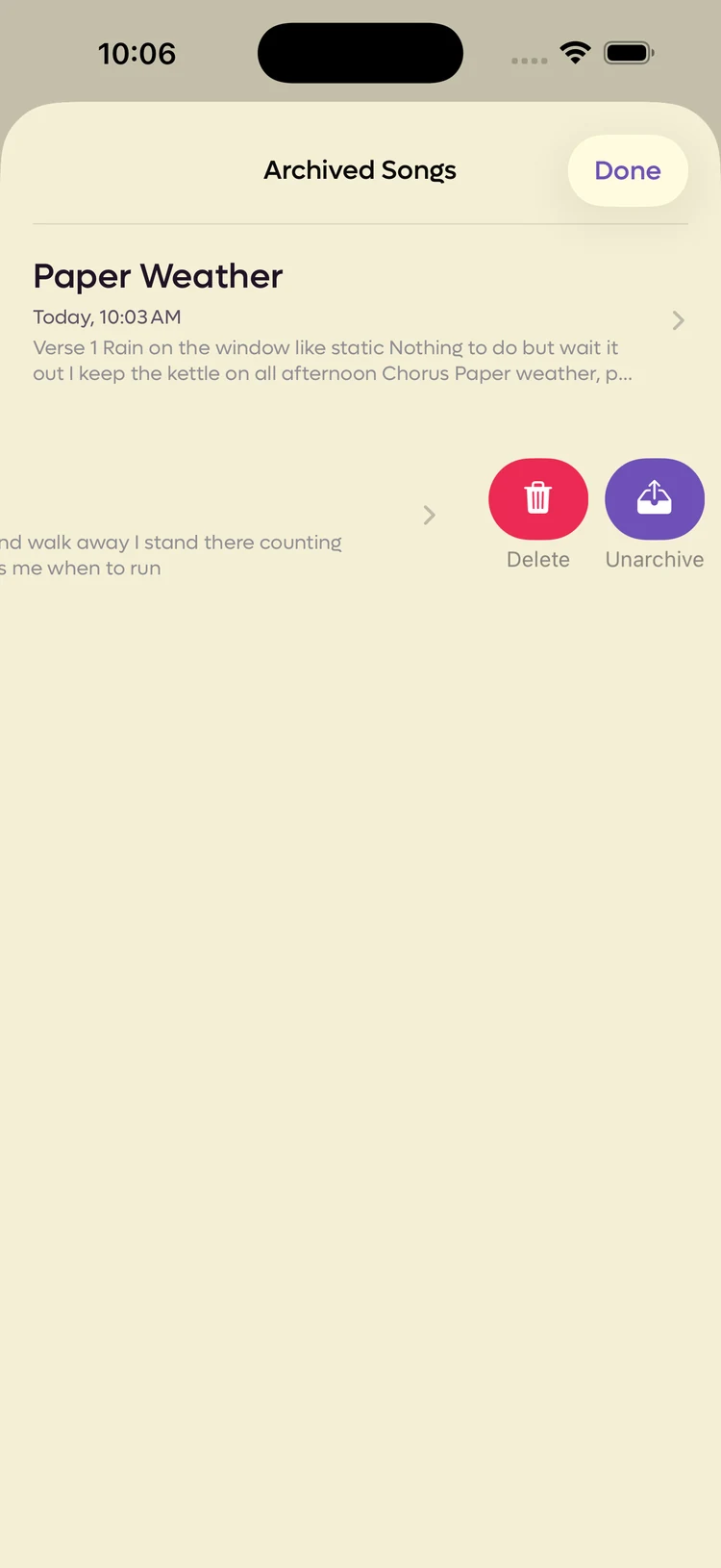
The songs inside keep everything.
Swiping one sideways offers the way back.
 1
1
- 1One tap puts it back in All Songs
 1
1
- 1Back into your song list
On the web, the Archive collection is called Archived, and Unarchive is in each song's ⋯ menu.
Delete is permanent, and it takes the song's attached recordings with it.
On the web, Delete is only offered for a song that is yours alone. A shared song can be archived but not deleted from the web app. A shared song of yours that nobody has joined yet offers Stop Sharing & Delete instead. See Inviting a collaborator.
Selecting several at once iOS app only#
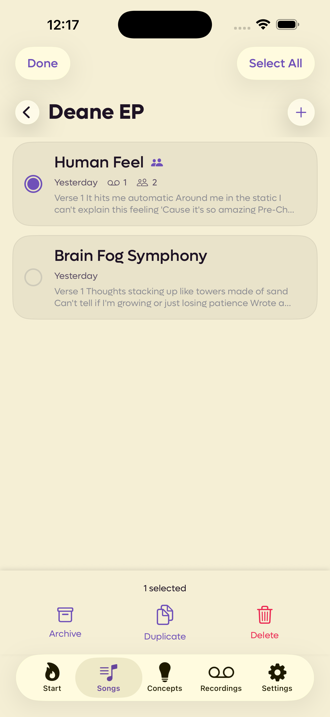
Select Songs in the ⋯ menu puts a checkbox on every row and a bar along the bottom.
 1
1
- 1Applies to everything ticked
Making a song#
Four ways, and they all end in the same editor.
| From | What you get |
|---|---|
| Write on the Start tab iOS app only | A guided start or a blank page. See The song wizard. |
| Write on Home, or New Song on Songs Web app only | A guided start or a blank page. See The song wizard. |
| Freestyle iOS app only | Sing or speak first, lyrics after. See Freestyle. |
| A concept | The concept's title, mood, theme and artists carried across. |
| An unattached recording | A new song with that audio already on it. |
Whichever you use, the song appears in All Songs and in Latest Songs on the Start tab on iOS, or on Home on the web.
Writing on two devices at once Web app only#
You can have the same song open in two places, say the web app on your computer and a second browser window, and write in both. Each save checks what is already saved. Lines you changed in one place and lines you changed in the other are combined, so neither set of edits is lost.
If both places changed the same line in different ways, Lyric Genie can't know which you meant. It keeps the version that was saved first, and saves your other edits as a new song with (Conflict copy) in its title. A banner in the song says so and links to the copy, so you can take what you need from it.