What you make
Projects
Folders you make yourself, to group songs into an album, a client, or a session.
Showing the iOS appweb app
A project is a named folder of songs. An album, an artist you write for, a single writing session, a batch you are pitching.
A project holds songs and nothing else. No lyrics of its own, no recordings, no concepts. Every song in a project is also in All Songs, because a project is a view of your songs rather than a place they move to.
Making one#
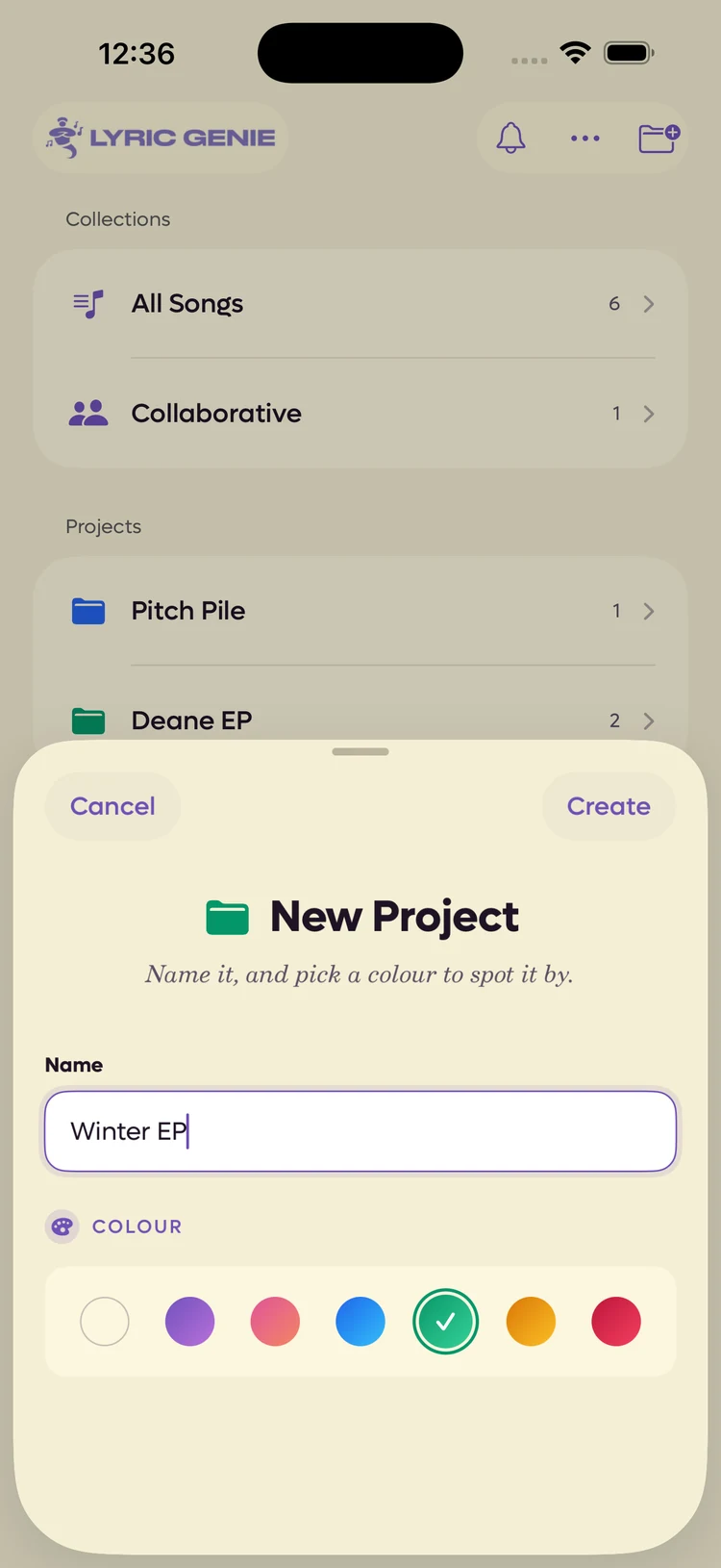
Open the Songs tab and tap New Project under the Projects heading, or the folder button in the top right. It asks for a name and a colour.
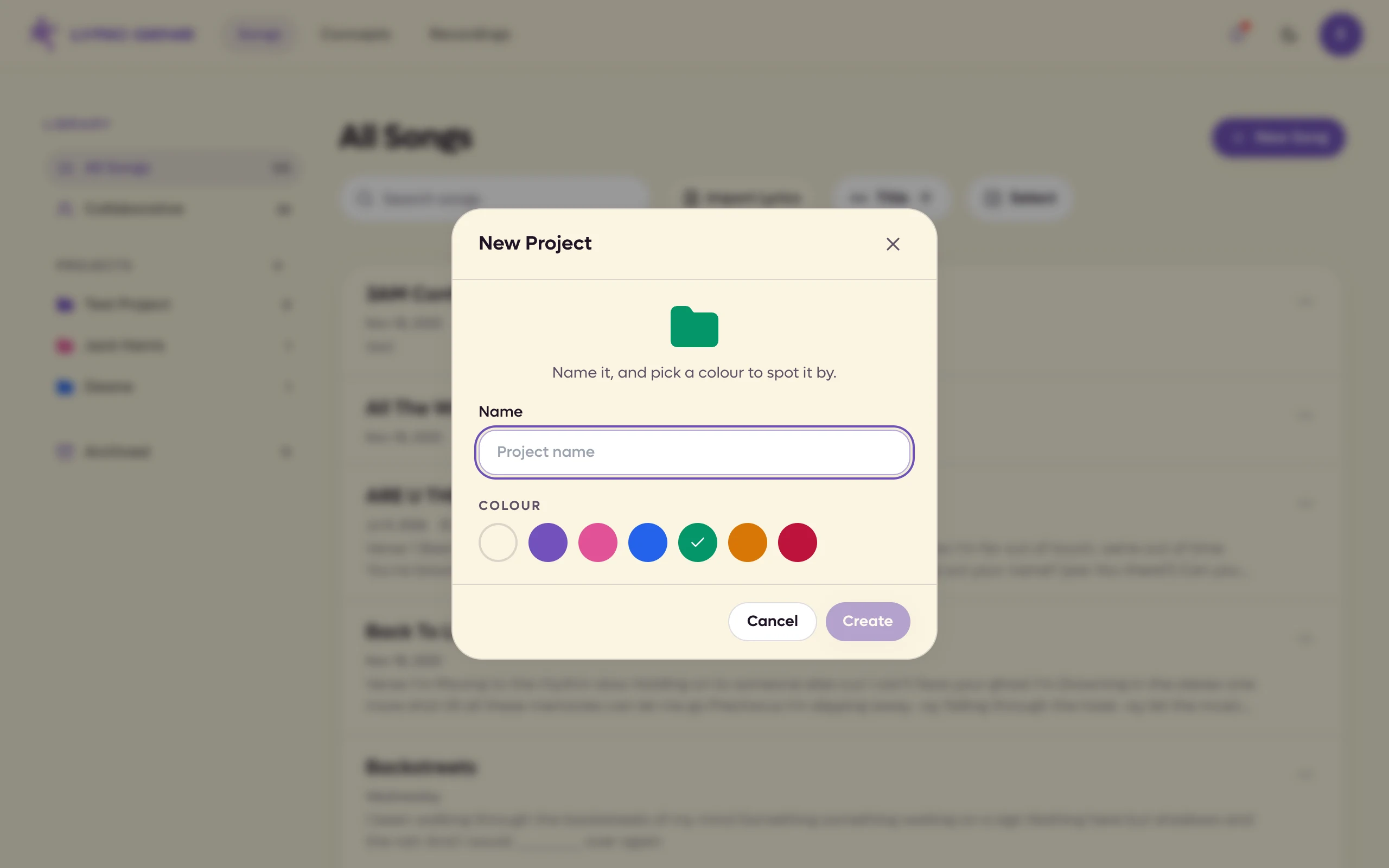
Open the Songs page and click the + beside Projects in the Library panel, or New Project if you have none yet. It asks for a name and a colour.
 12
12
- 1The name does most of the work
- 2Seven, and one is already picked for you
 12
12
- 1Name
- 2Colour
The colour is the same set of seven that concepts use, and it is offered already picked: each new project is suggested the colour after the last one you made, so a row of projects varies without you choosing. Tap a different swatch if you have one in mind. There is no description field, so the name is still doing most of the work. "Winter EP" beats "New Project 2".
What the colour does#
It shows in three places.
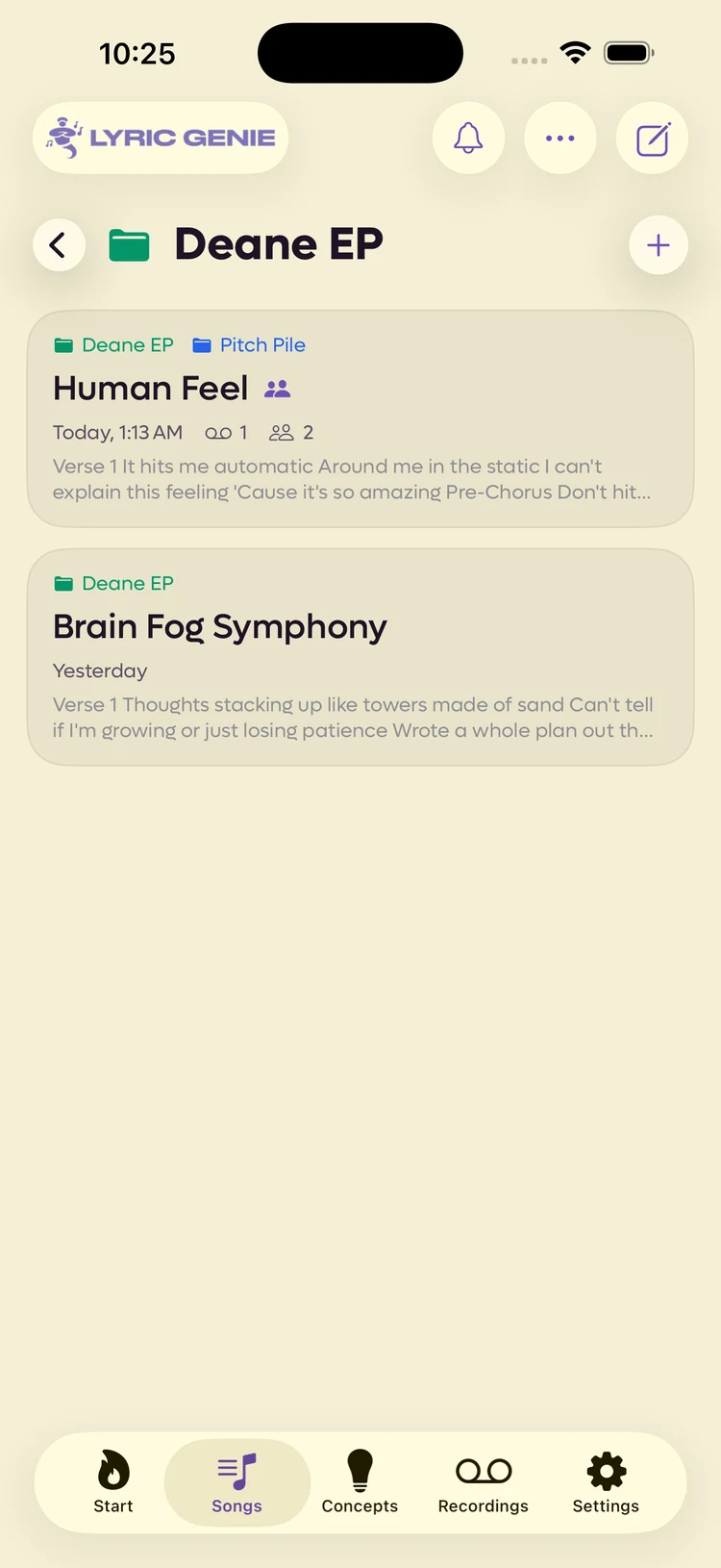
- The folder icon in the Collections list takes the colour, so you can pick a project out of a list of them without reading.
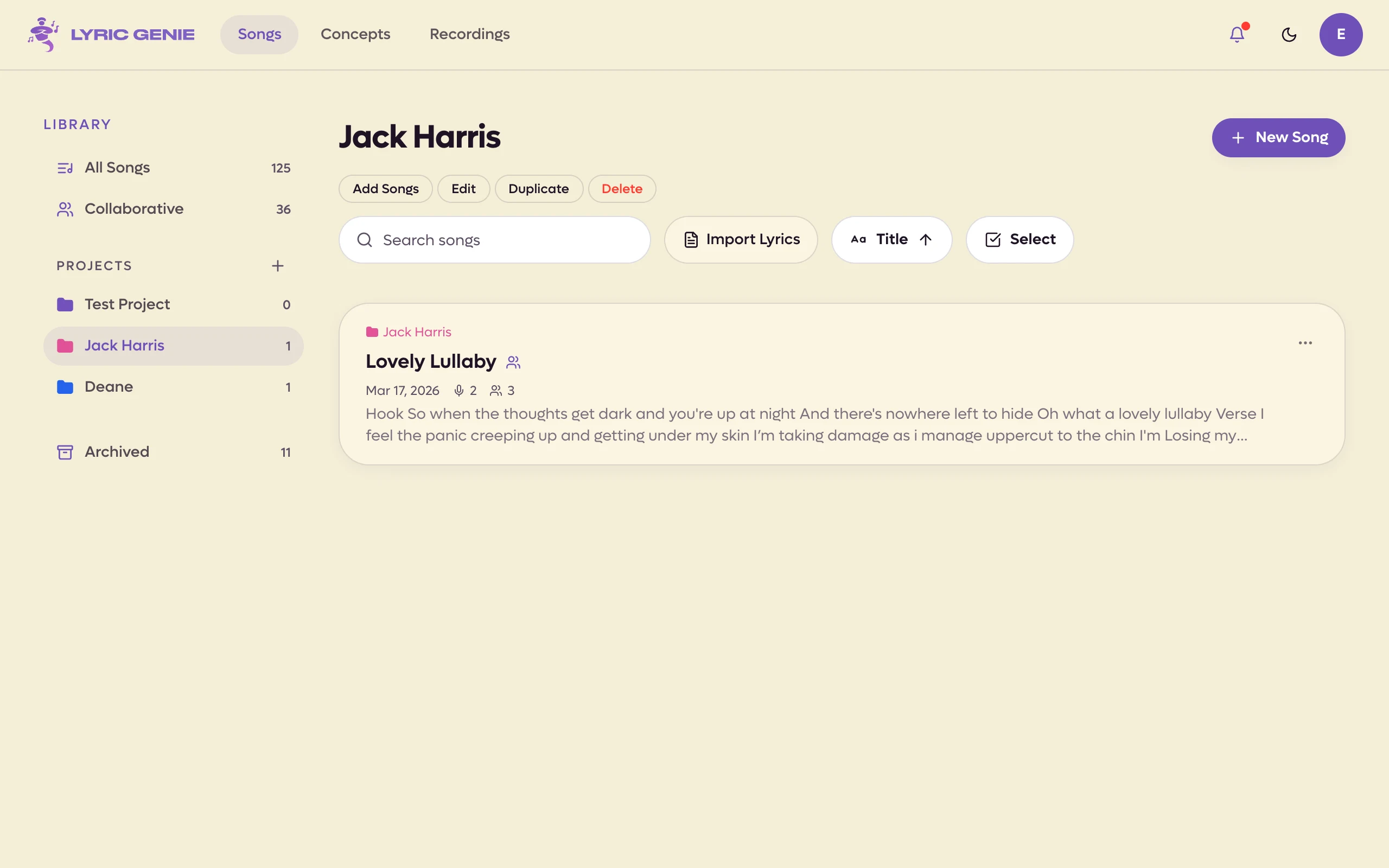
- The heading when you open the project, with the same coloured folder to the left of the name.
- A line above the song title, naming every project the song is filed in, each in its own colour. A song in two projects names both. A song in none has no line.
 12
12
- 1The heading carries the project's colour
- 2Every folder the song is in, this one first
 12
12
- 1Add Songs, Edit, Duplicate, Delete
- 2The project's tag on each song
That line looks the same wherever you see the song. Inside a project, that project is listed first rather than left out, so a row reads the same here as it does in All Songs and you can always see at a glance which other folders a song is in.
Tap a folder name to go to that folder (click it, on the web). The rest of the row still opens the song, and so does the name of the folder you are already inside — there is nowhere for that one to take you.
The name is there rather than a bare coloured dot on purpose. In Lyric Genie a coloured dot already means a person: on the collaborator tabs, beside a name on the Collaborators screen, and in the green "who is in this song now" badge at the right of a song row. A folder with a name on it cannot be misread as any of those.
Putting songs in it#
Open the project and tap Add Songs, or the + in its top right. You get your whole library with a checkbox on each row and a search field at the bottom.
Open the project and click Add Songs in the row of buttons above the list. You get your whole library with a checkbox on each row and a search field.
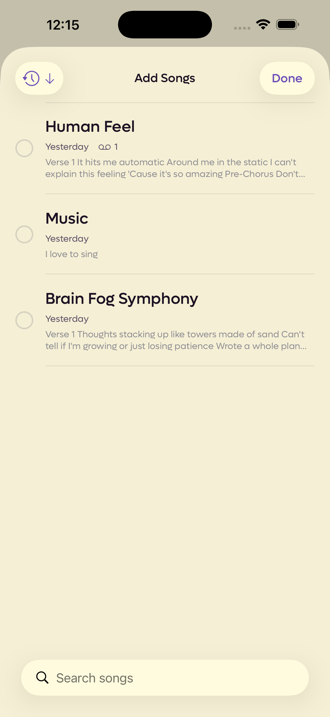 12
12
- 1Tick as many as you want
- 2For a library too long to scroll
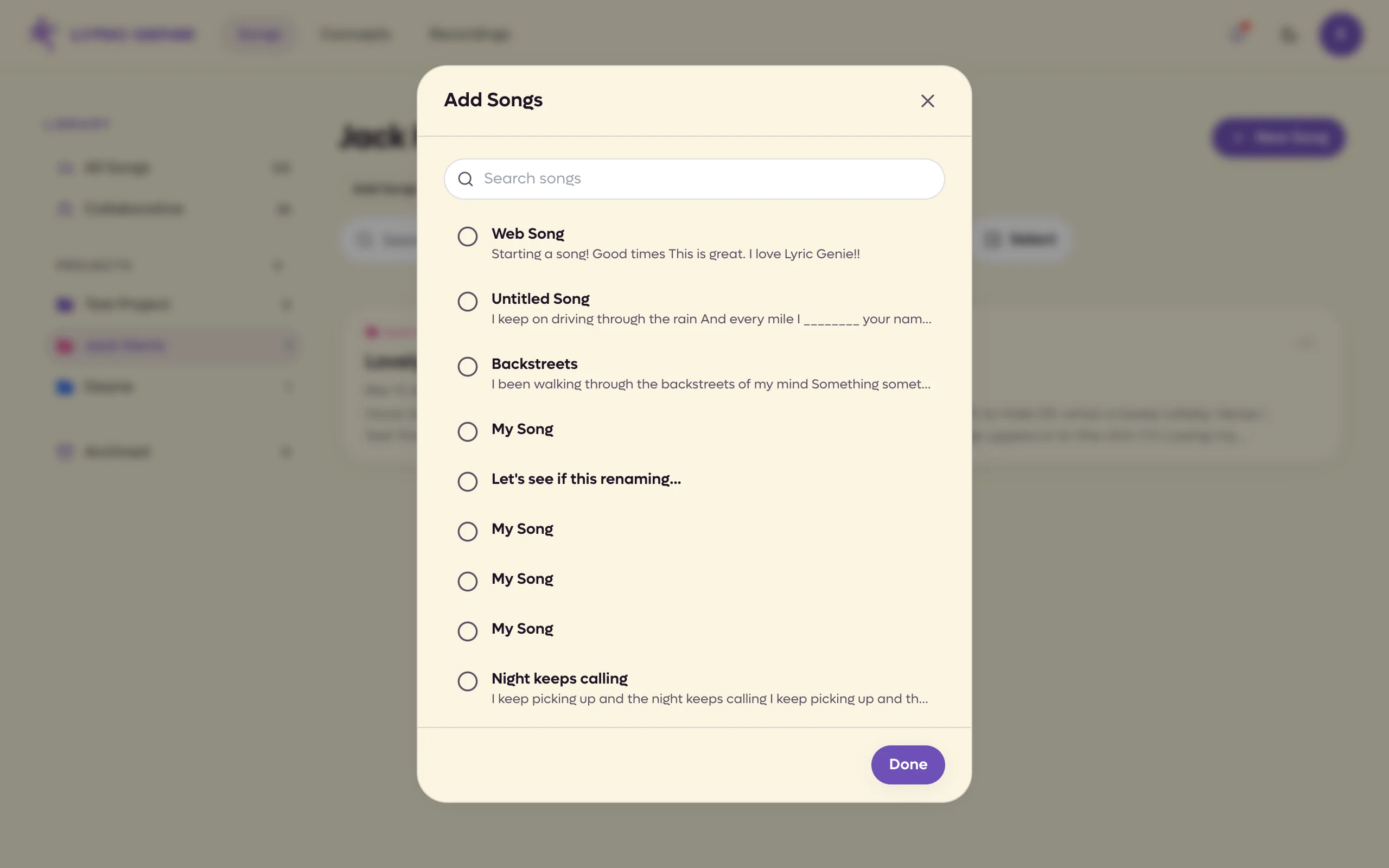 12
12
- 1Search
- 2Tick the songs to add
You can also start from the song: press and hold it anywhere in the Songs tab and choose Add to Project.
On the web, open the song's ⋯ menu in the song list and choose Add to Project.
A song can be in as many projects as you like, or in none. The same song can sit in an album folder and a pitching folder at once, because a project is a view of your songs rather than a place they move to.
Taking a song out#
Swipe the song sideways inside the project.
Inside the project, point at the song and a Remove button appears at the right of its row.
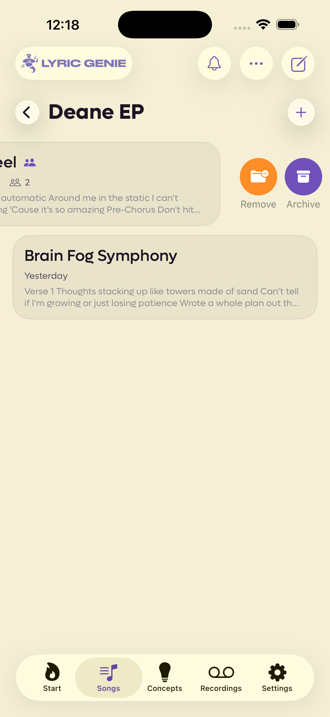 1
1
- 1Out of this folder only
Remove takes the song out of the project. The song itself is untouched and still in All Songs. Nothing in a project is ever the only copy of anything.
Renaming, duplicating and deleting#
Press and hold a project on the Songs tab.
Open the project. Edit, Duplicate and Delete are in the row of buttons above its songs.
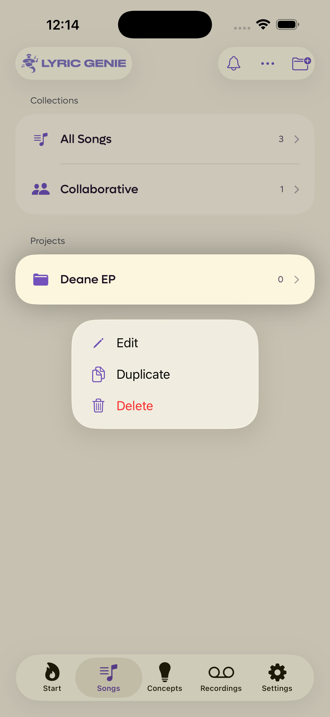
Edit opens the same sheet as creating one, with the name and colour filled in. Duplicate makes a second folder holding the same songs. Delete removes the folder and leaves every song in it alone, which is the one thing worth being sure of before you tap it.