Start here
Your first song
From an empty account to a finished draft you can sing, in ten minutes.
Showing the iOS appweb app
This is the short path through the app. Every step links to the page that covers it properly, so read this once and then go deeper wherever you need to.
1. Sign in#
Lyric Genie signs in with Google or with Apple. There is no email and password form. Pick one and remember which, because they are separate accounts and your songs belong to whichever you used. See Signing in.
On the web, Continue with Google or Continue with Apple opens a small sign-in window, so allow pop-ups for the site if nothing appears.
2. Start from the Start tab#
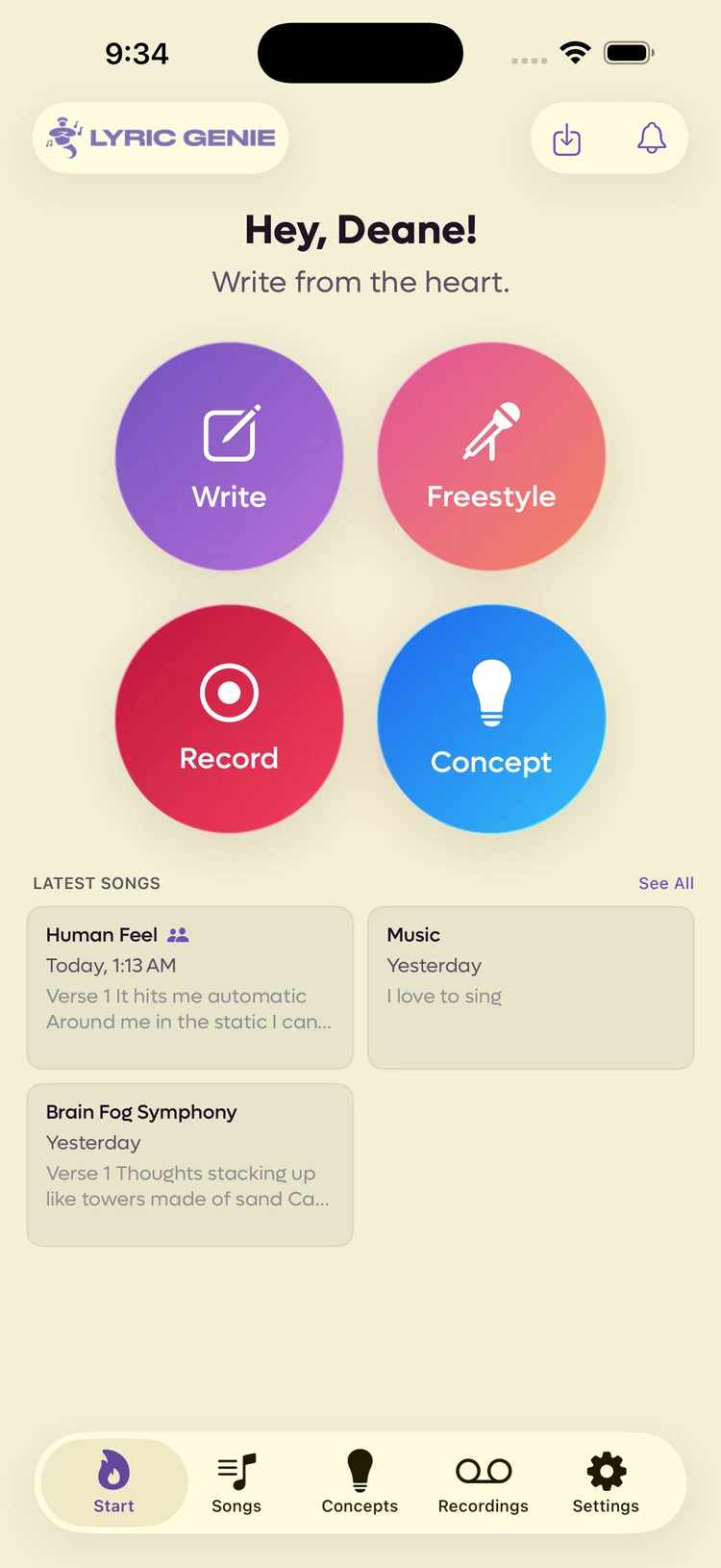
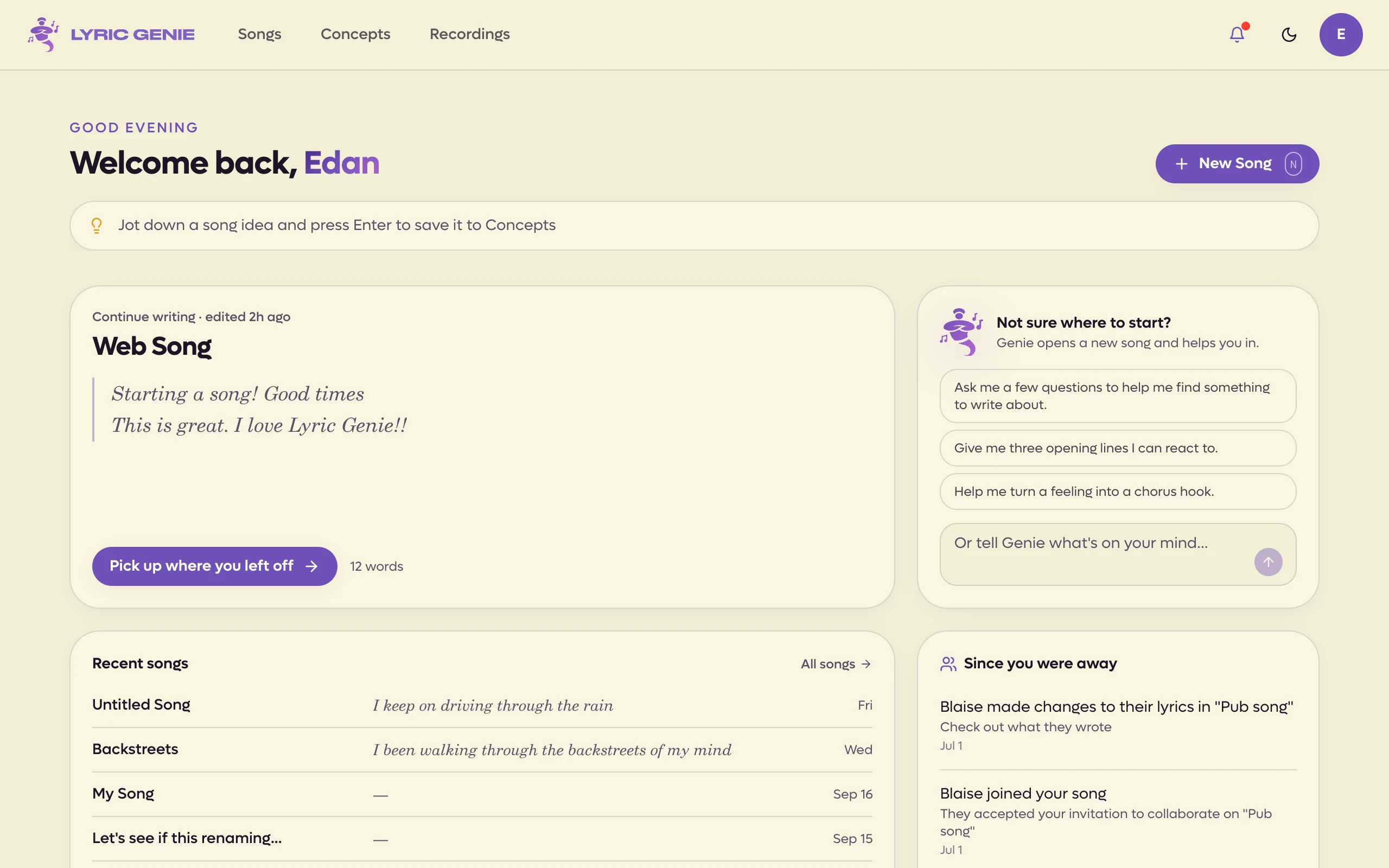
Everything begins on Home, the page you land on after signing in, or the logo in the top left from anywhere else. Its round buttons are the ways in: Write opens a new song, Record captures an idea as audio, and Concept saves an idea you are not ready to write as a concept. See The Home page.
Everything begins here. The four circles are the four ways in.
 123
123
- 1Type a song
- 2Sing or speak one
- 3Everything you were last working on
 1
1
- 1The song you last worked on
| Button | What it does |
|---|---|
| Write | Opens a new song. Choose a guided start or a blank page. |
| Freestyle | Starts recording straight away, and turns what you sang into lyrics. |
| Record | Captures audio with no song attached to it yet. |
| Concept | Saves an idea you are not ready to write. |
If you have nothing at all in mind, tap Write. If you have a melody in your head, tap Freestyle and sing it. See Freestyle.
Freestyle is not in the web app yet, so a song starts from Write on Home, or New Song on the Songs page.
3. Answer three questions#
Tapping Write offers a Guided Start or a Blank Editor. Take the guided one the first time.
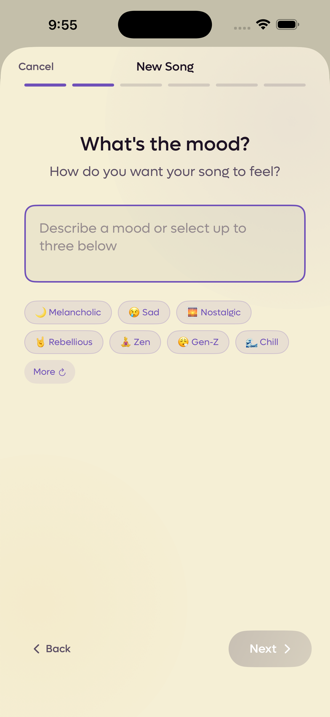
A new song asks how you want to start: Guide me or Start from scratch. Take the guided one the first time. Genie, the chat panel beside your lyrics, asks the three questions one at a time. See Guided Start.
 1
1
- 1Type your own, or pick from below
The three questions are mood, theme, and similar artists. They are worth answering honestly, because they are not a quiz: they become the song's AI Context, and every AI feature in the app reads them from then on. A song with no context gets generic help. A song with context gets help that sounds like your song.
The guided start then offers titles and opening phrases. Take what you like and ignore the rest. See The song wizard.
4. Write, and let it find your structure#
You are now in the editor. Type lyrics.
Put a line reading Chorus on its own and the app turns it into a section
header. It recognises the usual names with or without brackets, so Chorus,
[Chorus] and V1 all work. That is all structure is here: labelled blocks of
text.
See Sections and song structure and The song editor.
5. Use Wish Workshop when you are stuck#
Wish, the lamp in the bar along the bottom of the editor, opens Wish Workshop. It behaves two ways:
Wish Workshop is the sparkle button in the song bar above your lyrics. It behaves two ways:
- Nothing selected. It offers Creative Spark and writes something new for the song.
- Text selected. It rewrites that text, holding the syllable count and the rhyme unless you tell it not to.
That difference catches everyone once. If it rewrote a line when you wanted new material, deselect and try again. See Wish Workshop.
For smaller help there is a rhyme tool, a thesaurus, and a syllable adjuster, all in the bar that appears when you select a line. See Selecting and editing lines.
Genie is something else: a chat beside the song, where you can ask for ideas in plain words, or ask how something in the app works. On iOS it is the Genie button in the bottom bar; on the web, the genie in the corner of the editor. See Genie.
6. Sing it#
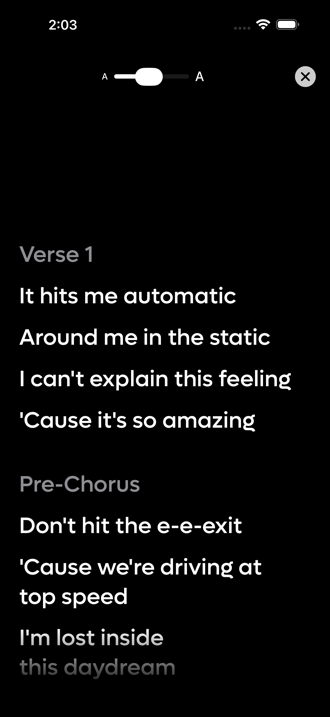
Tap Perform and the song goes full screen: black background, white words, nothing else. It is for singing from rather than writing in, and the font size slider is there because the phone is usually on a stand.
Click Perform and the song goes full screen: black background, white words, nothing else. It is for singing from rather than writing in, and the text size control is there because the screen is usually across the room.
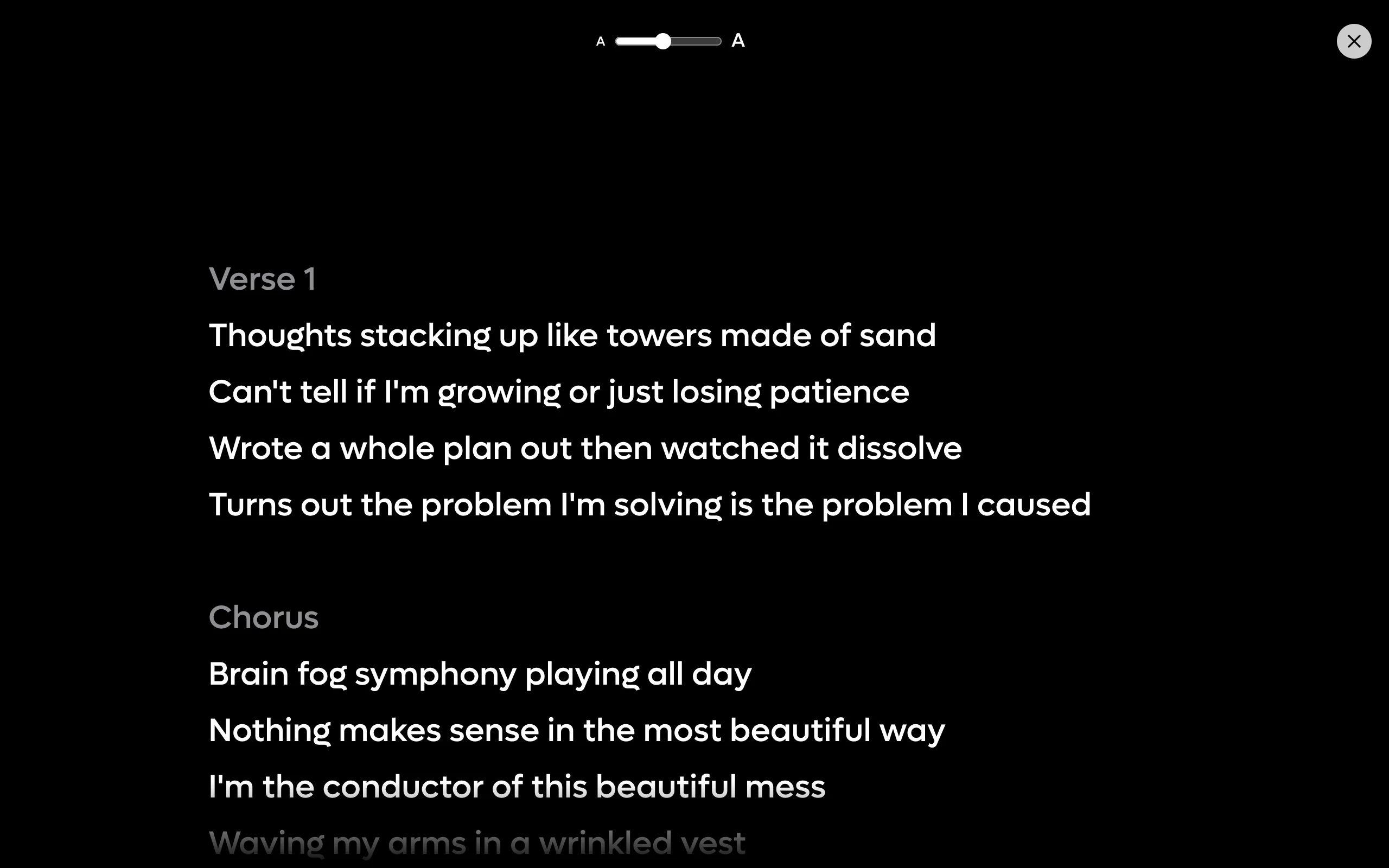
See Perform.
7. Get it out of the app#
Two things are worth knowing when you want to show someone.
- A lyric sheet publishes the song as a web page with your writer credits on it, at a link you can send to anyone. It is a frozen snapshot, so later edits do not change a link you already sent. See Lyric sheets.
- A collaborator can be invited to the song itself, with a six character code. Collaboration is free on both sides. See Inviting a collaborator.
What to read next#
How it fits together is the one page that saves you time later. It explains why a recording you made on the Start tab is not inside the song you thought it was, which is the single most common confusion in the app.