Starting a song
Importing files
Bringing audio and lyrics in from elsewhere, by file or from the share sheet.
Showing the iOS appweb app
Lyric Genie imports two different kinds of file: audio, which becomes a recording, and text, which becomes lyrics.
There are two routes in. Pick a file from inside the app, or send something to Lyric Genie from another app's share sheet.
On the web you pick a file from your computer. There is no share sheet, so the iOS route of sending something from another app does not apply.
Picking a file#
Each kind has its own button. Import Lyrics sits beside the search field on the Songs page and takes text documents. Upload Audio sits at the top of the Recordings page and takes audio files. Both open your browser's file picker.
The import button in the top bar of the Start tab takes either kind. The app works out what it got by inspecting the file itself, not by trusting the extension, so a mislabelled file still lands in the right place. Audio goes to Recordings. Text goes to lyrics.
If you already know what you are importing, the tab menus are explicit.
| Where | Menu item | Takes |
|---|---|---|
| Songs tab ⋯ | Import Lyrics from File | Text documents |
| Recordings tab ⋯ | Import Audio from File | Audio files |
These two were both labelled "Import from Files" in older versions, which made them impossible to tell apart. They now say which is which.
Sharing from another app iOS app only#
Lyric Genie appears in the iOS share sheet, which is the route most people actually use. It works from Voice Memos, Notes, Files, Mail, and anything else that shares audio or text.
From Voice Memos: press and hold a memo, tap Share, and pick Lyric Genie. The app opens with the audio already imported and waiting in Recordings. Nothing is exported to your camera roll or your Files app on the way.
What the app does with shared text#
Sharing a note or a document opens an Import Song sheet rather than dropping the text straight into a song. Nothing is created until you tap Import.
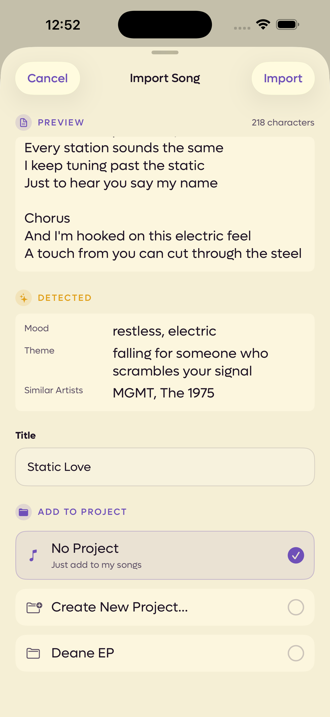
Picking a text file opens an Import Song sheet rather than dropping the text straight into a song. It shows the lyrics, the context it found and an editable title, and lets you file the song in a project. Nothing is created until you click Import. A file that is too large or cannot be read says so instead.
 1234
1234
- 1The lyrics, and how long they are
- 2Context pulled out of the text
- 3Editable before you commit
- 4File it straight away, if you want
The three magic lines#
If your text contains any of these lines, the app takes them out of the lyrics and puts them in the song's AI Context instead.
Mood: restless, electric
Theme: falling for someone who scrambles your signal
Similar Artists: MGMT, The 1975
Matching ignores capitals and spacing around the colon, and only the first of each is used. Everything else stays as lyrics. It means a note you keep in another app can carry its own context in, and the song arrives ready for the writing tools.
Where the title comes from#
The first non-empty line of the text, taken out of the lyrics. If the file is empty, the file's name is used, and failing that Imported Note. The title field on the sheet is editable either way.
Whatever the sharing app calls it. Apple Notes sends the note's own title, so that is what you get. If nothing sends a title, the app takes the first non-empty line of the text and removes it from the lyrics. Failing both, the song is called Imported Note.
The title field on the sheet is editable either way.
Where imported audio lands#
Audio does not simply fall into the Recordings tab. The import sheet asks you first, under an IMPORT TO heading.
On the web, the sheet also shows a preview and lets you name the take. It offers Ideas or any of your songs, and the same two choices below apply.
- Ideas leaves it unattached, filed with your other unassigned recordings.
- Any song attaches it straight away, so it never spends time as a loose idea. A search field appears once you have more than five songs, and shared songs are marked with a Collaborative badge.
The sheet also lets you name the take before it arrives, instead of leaving it called Recording and the time of day.
What happens to imported audio#
Audio is converted to M4A on your device as it comes in (in your browser, on the web, which needs Chrome, Edge or Safari). A long WAV shrinks considerably in the process, which is why there is no file size ceiling worth worrying about. What matters is length, not megabytes.
Length is capped exactly the way recording is: 5 minutes per item on the free plan, 60 minutes on Pro. Importing is not a way around the recording limit.
Limits on imported text#
A text file has to be under 5 MB, which is far more lyrics than anyone has. A file that cannot be read at all says so rather than importing blank.
Supported formats#
See Supported formats.