Collaboration
Collaborator tabs
On a shared song every writer gets their own lyric tab in their own colour, plus a Master tab for the agreed version.
Showing the iOS appweb app
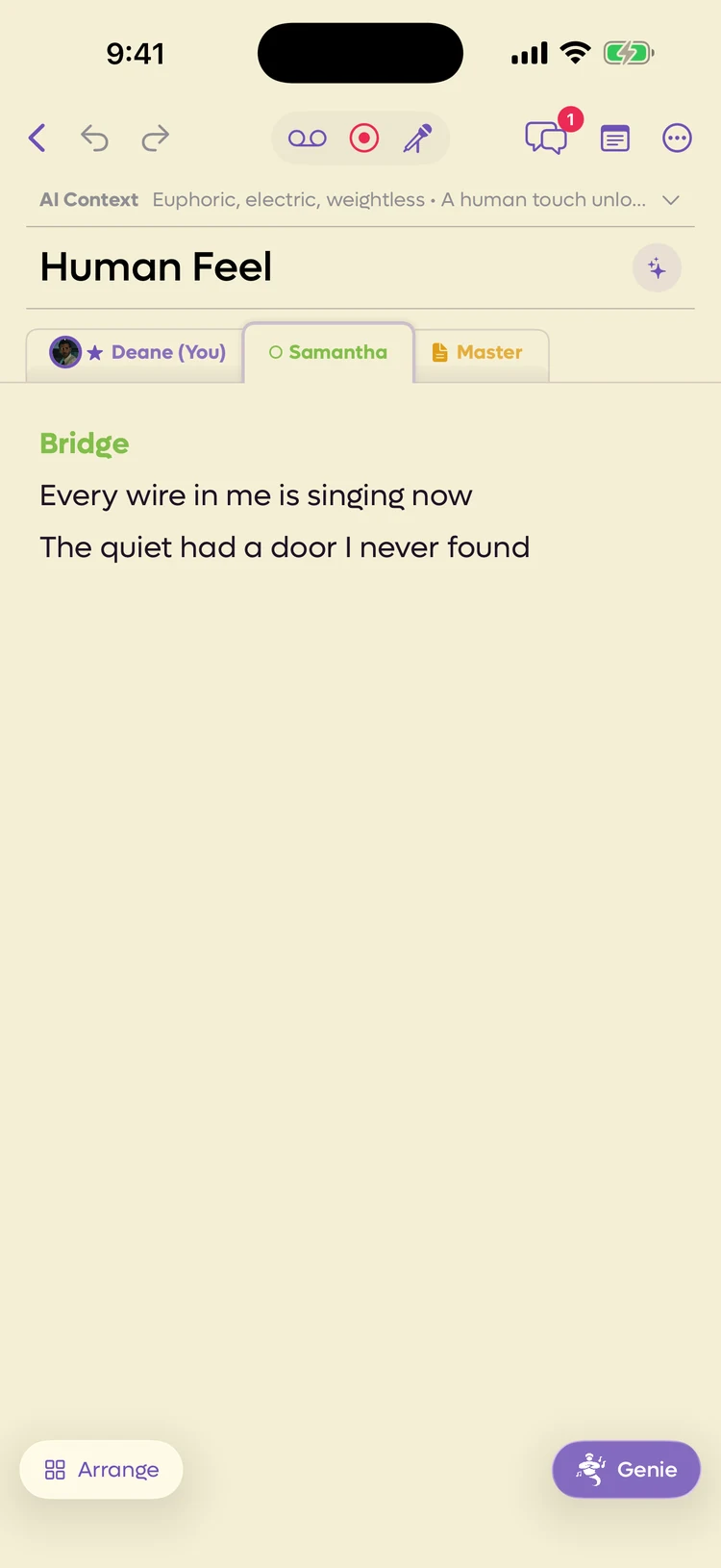
Share a song and the editor grows a row of tabs. Each writer gets one, and everyone can see everyone else's.
Nobody types over anybody. You write in your tab, they write in theirs, and the version you agree on lives in a shared one, the Master, which takes one writer at a time.
 123
- 1Your own tab, marked (You). The star means you own the song
- 2A collaborator, in their colour
- 3The agreed version
Reading the tabs#
On the web the tab row sits above the lyrics, and a green dot on a tab means that writer is in the song right now. It dims when they have left. The Collaborators section of the left panel says what each writer is doing. See Who is doing what.
| What you see | What it means |
|---|---|
| Your name (You) | Your own tab. Only you can type in it. |
| A star beside a name | That writer owns the song. |
| A filled dot | They are in the song right now. |
| An outlined dot | They are not. |
| Master | The agreed version. Anyone can type in it, one writer at a time. See The Master. |
| A lock on Master | Someone is editing it. In your colour, it is you. See One writer at a time. |
Colours are assigned, not chosen. The owner is purple and everyone else takes the next colour in the list, which is the same colour shown against their name on the Collaborators screen.
A song opens on the tab you were on last time, on that device, so you come back to where you left off.
Watching a collaborator write#
Open a collaborator's tab while they are in the song and you see their cursor as it moves: a line in their colour with their first name on it. When they select text, the selection shows in their colour too. It all happens live, so you can follow along as they write without either of you saving or refreshing.
Who is doing what#
The Collaborators screen lists everyone on the song, each in their tab colour, with a status under their name. A green dot means they are in the song now. Tap a collaborator to see their profile.
The Collaborators section of the left panel lists everyone on the song, each in their tab colour, with a status under their name. On a computer, the Collaborators icon at the top of the column of icons on the left edge opens it on its own. A collaborator's row has an Open tab button that switches to their tab.
| Status | What it means |
|---|---|
| Writing in a section, such as Writing in Verse 1 | Typing in their own tab. |
| Here · in a section, or Here now | In the song, with their cursor in that section, but not typing. |
| Recording… | Recording a take. |
| Uploading audio… | Adding an audio file. |
| Typing in chat… | Writing a message in the chat. |
| Performing | In Perform. |
| Arranging | In Arrange mode. |
| Looking at your tab, Looking at the Master, or Looking at someone's tab | Reading a tab other than their own. |
| Last edited and a time | Not in the song. They were the last to change it. |
| Owner or Collaborator | Not in the song. |
Writers who are not in the song right now look slightly faded, with no green dot.
What is yours and what is shared#
Your tab is yours. Collaborators can read it but cannot edit it. To get your words into someone else's hands you send them, which is covered in Sending lines to a collaborator. Selecting text on someone else's tab, or on the Master while someone else is editing it, still gives you the tools that only read it, such as rhymes, To Me and Genie.
Section headers take your colour. Write a Bridge in your tab and the header is your colour rather than the app's purple, so a glance at a tab tells you whose work it is.
The Scratchpad stays private. Nobody else can see it, on any song. It is the right place for a line you are not ready to show.
On a shared song the scratchpad says Private · only you can see this, with an eye icon. Each writer has their own. Songs shared before this worked this way had one set of scratchpad notes for everyone, and those notes were copied into each writer's private scratchpad, so nobody lost anything. On the iPhone this needs version 2.21 or later.
Recordings are shared. Audio attached to the song is visible to everyone on it.
Each tab shows the takes belonging to that writer as a strip of chips. When a writer has more takes than fit, the strip ends in a ⋯ +3.
Tap a chip and a small player appears without leaving the tab, with skip back, play and pause, skip forward, and a close button. You can listen to how a collaborator sang their verse while reading the words they wrote for it, which is the point of putting the two side by side.
On the web, a take linked to lyrics shows as a bar beside those lines in that writer's tab, and clicking it plays it in the player pinned below the editor. The Recordings section of the left panel lists every take on the song. See Recordings.
What changes in the toolbar#
A shared song adds a way to talk to your collaborators.
- iOS app only The Chat button appears on the right of the editor toolbar, with a red number when there is something new. See Collaborator chat.
- iOS app only Collaborators moves off the toolbar and into the ⋯ menu.
- iOS app only When you select text, the bar at the bottom gains To Master, To Me and To Collaborator…. On the Master tab, the bar's Arrange reads Arrange Master.
- Web app only Collaborators and Chat move to the top of the left panel, and the selection toolbar gains To Master, Send to…, and To Me on someone else's tab. See Sending lines and Collaborator chat.
- A live session on the song. On the iPhone it is Live Session in the ⋯ menu. On the web it is the Session section of the left panel.
Side by side Web app only#
On a computer you can read a collaborator's tab, or the Master, next to your own. Choose View, then Side by side, or right-click a writer's tab and choose Open side by side.
- Your tab stays on the left, and you can keep writing in it.
- The right side shows another tab, read-only. It has its own row of tabs, so you can switch between collaborators and the Master there. The × closes it.
- Drag the divider between them to give one side more room. Double-click it to make them even again.
- Each side scrolls on its own, so you can line up your verse with theirs.
The song remembers whether it was side by side, and what was on the right, the next time you open it.
You can select text on the right just as on any collaborator's tab: look up rhymes or synonyms, Ask Genie, send lines To Me or To Master, or link the lines to a recording.
If you are removed, or you leave#
You keep a personal copy of the song under a new title, so nothing you wrote is lost. You stop seeing the shared version and anything written in it afterwards.