The song editor
The song editor
Every control in the Lyric Genie song editor, what it does, and where it sits.
Showing the iOS appweb app
The song editor is where you actually write. Open any song and this is what you get: a title, a page for your lyrics, and a ring of tools around the edge that you can mostly ignore until you need them.
This page is the map. Each tool has its own page, linked from here.
On the web the editor is a three-panel desktop workspace: your song's context and sections on the left, the lyrics in the middle, and writing tools and Genie on the right. The workspace page covers the panels. On a phone browser the side panels become overlays and bottom sheets, and the writing tools sit in a bar along the bottom. The controls below are named for the web where they differ from the app.
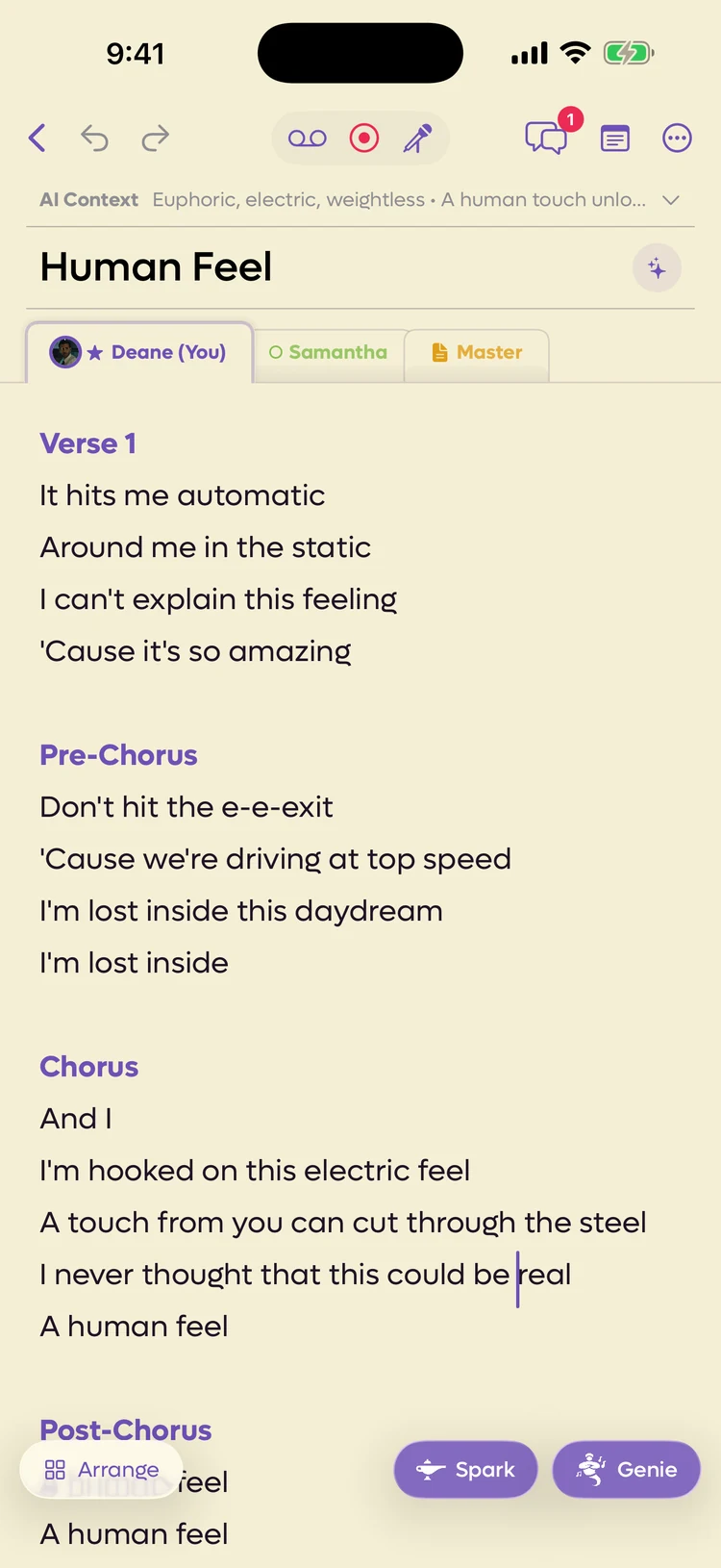 12345678910
- 1Recordings: the audio already on this song
- 2Record: start a take now
- 3Freestyle: sing, and get lyrics back
- 4Chat with your collaborators
- 5The Scratchpad, for lines that are not in the song yet
- 6More: Collaborators, Perform, Lyric Sheet and the rest
- 7AI Context. Every writing tool reads this first
- 8Arrange: reorder, move and send lines
- 9Spark (Wish Workshop with lines selected)
- 10Genie
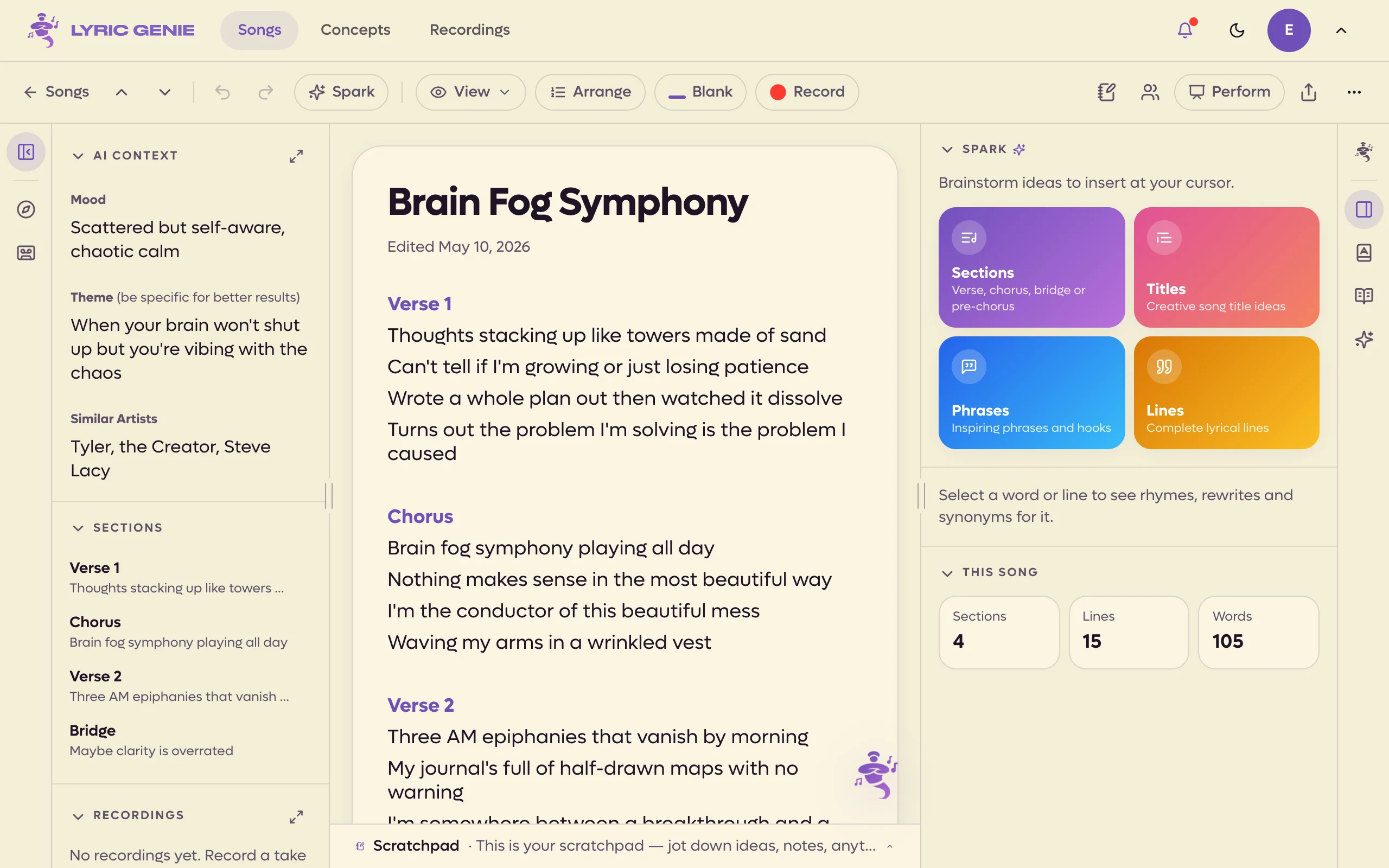 12345678910
- 1Undo, and Redo beside it
- 2Wish Workshop: Spark, or Wish with lines selected
- 3Rhyme colours and margins
- 4Reorder, move and delete lines
- 5Add a blank at the cursor
- 6Scratchpad
- 7Who is on the song
- 8Full-screen lyrics to sing from
- 9A shareable lyric sheet page
- 10AI Context: what every AI feature reads
The toolbar#
Reading left to right.
| Control | What it does |
|---|---|
| Back | Returns to wherever you came from. Your work is already saved. |
| Undo and Redo | Step backwards and forwards through your edits. |
| Recordings | Opens the audio attached to this song. See Recordings. |
| Record | Starts recording straight away. |
| Freestyle | Opens Freestyle ready but not recording. |
| Scratchpad | Slides up a notepad that is not part of your lyrics. |
| Collaborators | Invites people to the song and manages who is on it. |
| More | The menu described below. |
The three audio buttons sit together in a grey capsule because they are three answers to the same question. Record captures audio. Freestyle captures audio and turns it into lyrics. Recordings is where both end up.
The song bar runs along the top of the editor.
| Control | What it does |
|---|---|
| Back | Returns to your Songs list. Your work is saved as you type. |
| Previous and next song (˄ ˅) | Open the song above or below this one in the list you came from, without going back to it. See Moving between songs. |
| Panel buttons | Show and hide the left and right panels. On a desktop, rails at each edge of the window do this too. See the workspace. |
| Undo and Redo | Step backwards and forwards through your edits. One timeline covers the lyrics, the title, the AI Context and the Scratchpad. |
| Wish, View, Arrange, Blank | The writing tools. See below. |
| Scratchpad | Opens a notepad that is not part of your lyrics. |
| Collaborators | Avatars of who is on a shared song. Click them to open the Collaborators section of the left panel. |
| Perform | Full-screen lyrics for singing along. |
| Lyric Sheet | Creates a shareable web page of the finished lyrics. |
| ⋯ | Recordings, plus Archive and Delete for the song. |
There is no recording capsule up here. Record sits among the pills and starts a take straight away, linked to any lines you have selected. The takes themselves live in the left panel's Recordings section. See Recordings. Freestyle is not on the web.
AI Context#
The bar under the toolbar reads Add AI context... until you fill it in. Tap it and it opens three fields.
On the web these three fields are the AI Context section of the left panel.
| Field | The question it is really asking |
|---|---|
| Mood | How is the song supposed to feel? |
| Theme | What happens in this song, in a sentence? |
| Similar Artists | Which artists inspire this song? |
This is the single highest-leverage thing on the screen. Every writing tool in the app reads these three fields before it suggests anything, so a song with them filled in gets noticeably better results than an empty one. The app knows it too: open Wish Workshop on a song with no context and it stops to ask you for some before it will continue.
Theme does the most work, and it rewards being specific. "Leaving home" is weaker than "she leaves the town that made her small".
The song title#
Type a title straight into it. The button beside it suggests titles based on what you have written, and you can page through the suggestions rather than taking the first one.
It stays greyed out until there are some lyrics to read, because a title suggestion with nothing to go on is just a random phrase.
The bar along the bottom#
The web has no bottom bar on a computer. The writing tools are pills in the song bar, and on a phone browser they sit in a bar along the bottom of the editor.
Wish opens Wish Workshop in the right panel. It reads Spark when nothing is selected, because that is what you get then: fresh material rather than a rewrite.
Arrange opens Arrange mode, where you select whole lines and move, duplicate or delete them rather than editing text. The pill turns into Done while you are in it.
Two more pills sit beside them. View switches on rhyme colours and the syllable and rhyme-letter margins; see View options. Blank adds a blank at the cursor; see Blanks.
Since iOS 2.22 the writing tools sit in a bar docked along the bottom of the editor, over your lyrics. What it holds depends on whether you have selected any text.
With nothing selected, it reads left to right:
| Button | What it does |
|---|---|
| Arrange | Opens Arrange mode, where you move, duplicate or delete whole lines. On the Master tab it reads Arrange Master. Shown when the tab has lyrics. |
| Insert Blank | Adds a one-syllable blank at the cursor, or one more syllable to the blank there. Shown while you type on your own tab. See Blanks. |
| Wish | Opens Wish Workshop in Creative Spark mode. Not shown on a collaborator's tab or the Master. |
| Genie | Opens the Genie chat for this song. |
| Done | Puts the keyboard away. Shown while you type. |
On a narrow screen, Wish and Genie shrink to their icons first, then Insert Blank, then Arrange.
With text selected, the bar becomes a row of actions for the selection, with Done pinned at the right. The row scrolls sideways; the arrows at its ends jump to the start or the end. See Selecting and editing lines for every action in it.
The ⋯ menu#
The web's ⋯ menu is short: Recordings, Keyboard shortcuts, then Archive and Delete. Perform and Lyric Sheet are buttons in the song bar. AI Style and Preferences are in Settings, and the app's guided editor tour has no web version. Genie, the writing assistant, has its own page: Genie.
| Item | What it does |
|---|---|
| Perform | Full-screen scrolling lyrics on a black background, for singing along. Greyed out until the song has lyrics. |
| Lyric Sheet | Creates a shareable web page of the finished lyrics with writer credits. |
| Session | On a shared song, starts or joins a live video and voice session. Needs iOS 2.23. See Sessions. |
| Notes | The notes left on this tab's lyrics. See Notes on lyrics. Needs iOS 2.22 or later. |
| AI Style | Standing instructions for the AI, including words you never want it to use. |
| Preferences | App settings, including the serif lyric font and in-line suggestions. |
| Show Editor Tour | Replays the guided tour of this screen. Useful, and not buried in Settings. |
The Scratchpad#
The button slides up a ruled notepad from the bottom. It belongs to the song and it saves with the song, but it is not part of your lyrics, so nothing in it appears in a lyric sheet or in Perform.
Use it for the lines you are not sure about yet, rhyme lists, or a chorus you might come back to.
On the web it is the Scratchpad button in the song bar, and the notepad opens as a drawer under your lyrics.
What changes on a shared song#
Invite a collaborator and the editor grows a few things.
- A row of tabs appears, one per writer, each in their own colour, plus a Master tab for the agreed version. Anyone can type in the Master, one person at a time. See The Master.
- You see where your collaborators are working: their cursor and selection, in their colour, on their tab.
- The song reopens on the tab you used last, on that device (iOS 2.23) or in that browser.
- A Chat button joins the toolbar, carrying a count when there are new messages or someone has sent you lines. See Collaborator chat. iOS app only
- Collaborators moves off the toolbar and into the ⋯ menu. iOS app only
- Web app only The Collaborators and Chat sections move to the top of the left panel, and avatars in the song bar show who is in the song right now. See Collaborator chat.
Collaboration has its own section of these docs, starting with Inviting a collaborator.
Notes and alternate lines#
Two more things you can do in the lyrics:
- Notes pin a comment to particular words, for you or your collaborators. See Notes on lyrics.
- Alternate lines keep two versions of a line side by side, written
main line / alternate. See Alternate lines.