The song editor
The desktop workspace
The three panels of the Lyric Genie web editor, how to resize and hide them, and what changes in a phone browser.
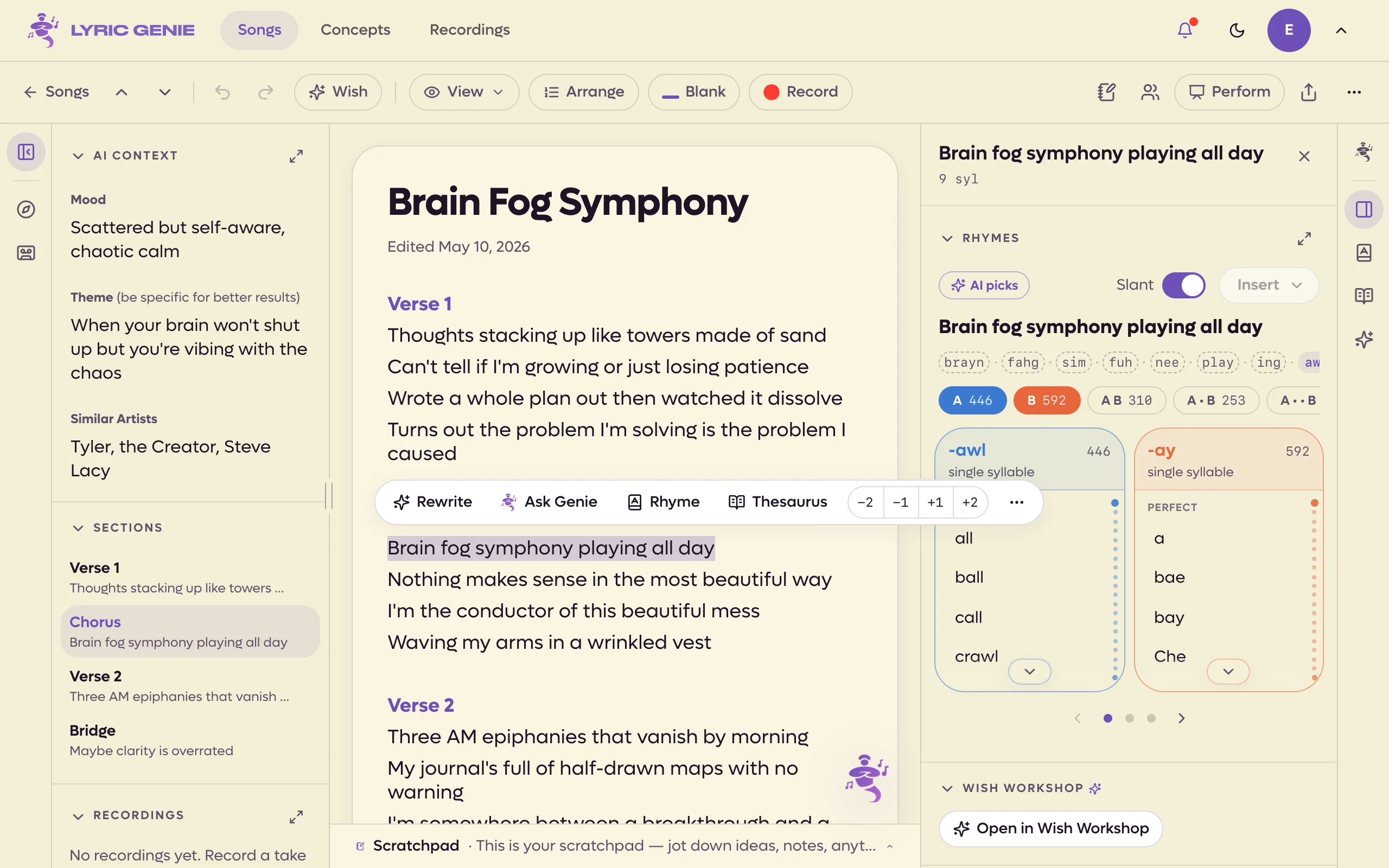
On the web, a song opens as a workspace that fills the window. Your lyrics sit in the middle as a page. What the song contains is on the left. Tools for the line you are working on are on the right.
You can write with both side panels shut. They are there for when you want them, and every one of them remembers how you left it.
 123456
- 1Undo, the writing pills, View, save state
- 2AI Context, Sections, Recordings, Collaborators
- 3Your song
- 4Tools for what you selected
- 5Genie, Writing tools, Rhymes, Thesaurus, Wish Workshop
- 6Click to open, drag to resize
The song bar#
The row along the top of the song belongs to the song, not the app.
| Control | What it does |
|---|---|
| Songs | Back to your song list. |
| Undo, Redo | One history for the whole page: lyrics, title and AI Context. |
| Wish or Spark | Opens Wish Workshop. It reads Wish with lyrics selected and Spark without. |
| View | Rhyme colours and the margins. See Rhyme colors and margins. |
| Arrange | See Arrange mode. |
| Blank | Adds a one-syllable blank at the cursor, or one more syllable to the blank already there. |
| Record | Starts a take straight away. With lyrics selected, the take is linked to those lines. See Recordings. |
| Save state | Whether your last change has reached the cloud. |
| Scratchpad | Opens and closes the scratchpad drawer. |
| Collaborators | The faces of who is on the song. Click to open Collaborators in the left panel. |
| Perform | See Perform. |
| Lyric Sheet | Makes a lyric sheet to share. |
| More | Recordings, Archive, and Delete for a song only you write. |
The app's own bar, with the logo and the main pages, sits above all this. The up arrow at its right hides it to give the song more room. The genie logo that then appears at the start of the song bar brings it back.
The left panel: the song#
Everything the song is made of, in collapsible sections. Click a section's heading to fold it away.
- AI Context. The song's mood, theme and similar artists, which every AI feature reads. Press Enter to finish a field. See AI Style for the instructions that apply to all your songs instead.
- Sections. Every section header in the lyrics, with its first line. Click one to jump to it. The one your cursor is in is highlighted.
- Recordings. The takes on this song, with Record and Import at the top once there is at least one. See Recordings in a song.
- Collaborators. Who is on the song and who is here right now. On a shared song this section comes first. See Collaborator tabs.
Moving a whole section#
Drag a section in the Sections list to move it, header, lines and all, to a new place in the song. It is one change, so a single Undo puts it back.
Sections only move on your own tab. On a co-writer's tab, or while Arrange mode is on, the list still jumps but does not drag.
The right panel: tools and Genie#
The right panel shows one of two things, chosen from the column of icons along the right edge of the window.
| Icon | Opens |
|---|---|
| Genie | The Genie chat for this song. |
| Writing tools | The tools for whatever you selected last. |
| Rhymes | Rhymes for the selection, on their own. |
| Thesaurus | Synonyms for the selection, on their own. |
| Wish Workshop | Wish Workshop, widened. |
The highlighted icon is the one showing. Click it again to close the panel.
Writing tools#
The tools follow your selection. Select a word or a line and the panel fills with things to do with it, and it keeps them after you click away, so you can try one rhyme, then another. The × beside the selected text clears it.
With something selected:
- Rhymes, from the same engine as the rhyme sheet. They load on their own, since they cost nothing.
- Wish Workshop, to rewrite up to six selected lines.
- Thesaurus, which uses AI, so it waits for you to ask.
- Syllables, the line's count and an AI rewrite one syllable longer or shorter. See Syllables.
With nothing selected:
- Spark, to brainstorm sections, titles, phrases or lines at your cursor.
- Rhymes for the last word of the line your cursor is on, which is usually the word you are trying to rhyme.
This song, at the bottom, counts sections, lines and words either way.
Giving a tool more room#
The expand button on Rhymes or Thesaurus opens that tool on its own and widens the panel. The widen button in a tool's header switches between wide and normal. Wide folds the left panel away to make room, and Wish Workshop remembers which you used last.
The back arrow, or Esc, returns to the full list of tools.
Resizing and hiding the panels#
- Drag the inner edge of either panel to make it wider or narrower. The edge has a small double-line grip in the middle so you can find it.
- Double-click that edge to put the panel back to its normal width.
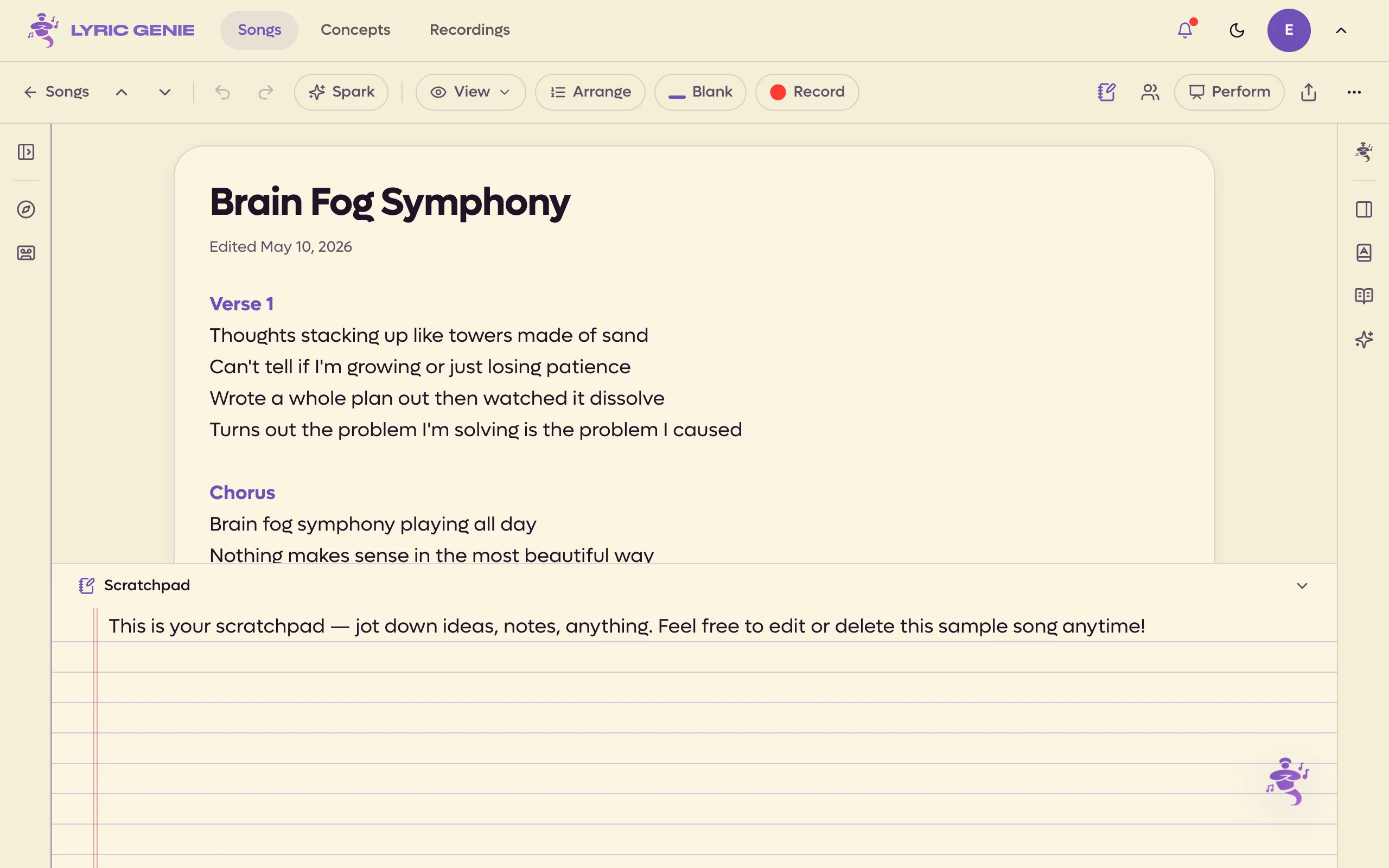
- Drag it most of the way closed and it folds down to a slim column of icons.
 123
123
- 1Click any to reopen
- 2Always here
- 3Drag the top edge to resize
The lyrics keep a sensible minimum width, so a panel stops growing before it squeezes the page.
On a computer both columns of icons stay put whether or not their panel is open. The left one has the panel button, then AI Context and Recordings, which open that section on its own in a wider panel. The icon for whatever is showing is highlighted, and clicking it again closes it. With the left panel folded, you can also drag the column's edge outward to open it.
On a very wide screen the lyrics stop at a comfortable reading width and sit in the middle of the space, rather than stretching across it.
Lyric Genie remembers which panels were open and how wide they were, per browser. The first time you open a song, the left panel shows on a window at least 1024 pixels wide and the right on one at least 1280.
The scratchpad#
The scratchpad is a drawer under the page for lines you are not using yet. Closed, it is a bar showing its first line. Click the bar, or the scratchpad button in the song bar, to open it, and drag its top edge to make it taller.
Text in the scratchpad works with the writing tools like your lyrics do. Wish Workshop and the rhyme tools can send words to it with Add to Scratchpad.
In a phone browser#
Below 768 pixels wide, the workspace turns into something closer to the iOS app.
 12
12
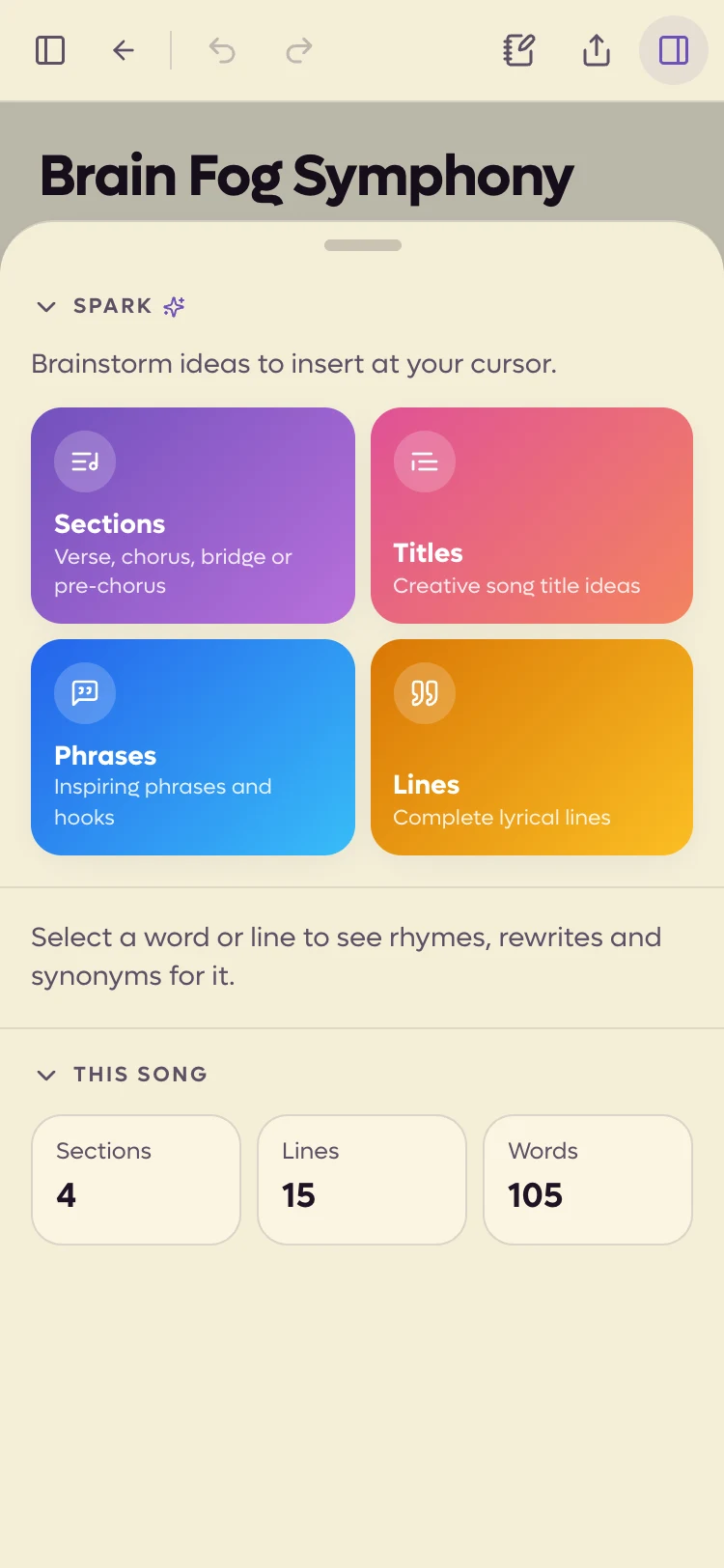
- 1Drag down to close
- 2The tools button
 1234
1234
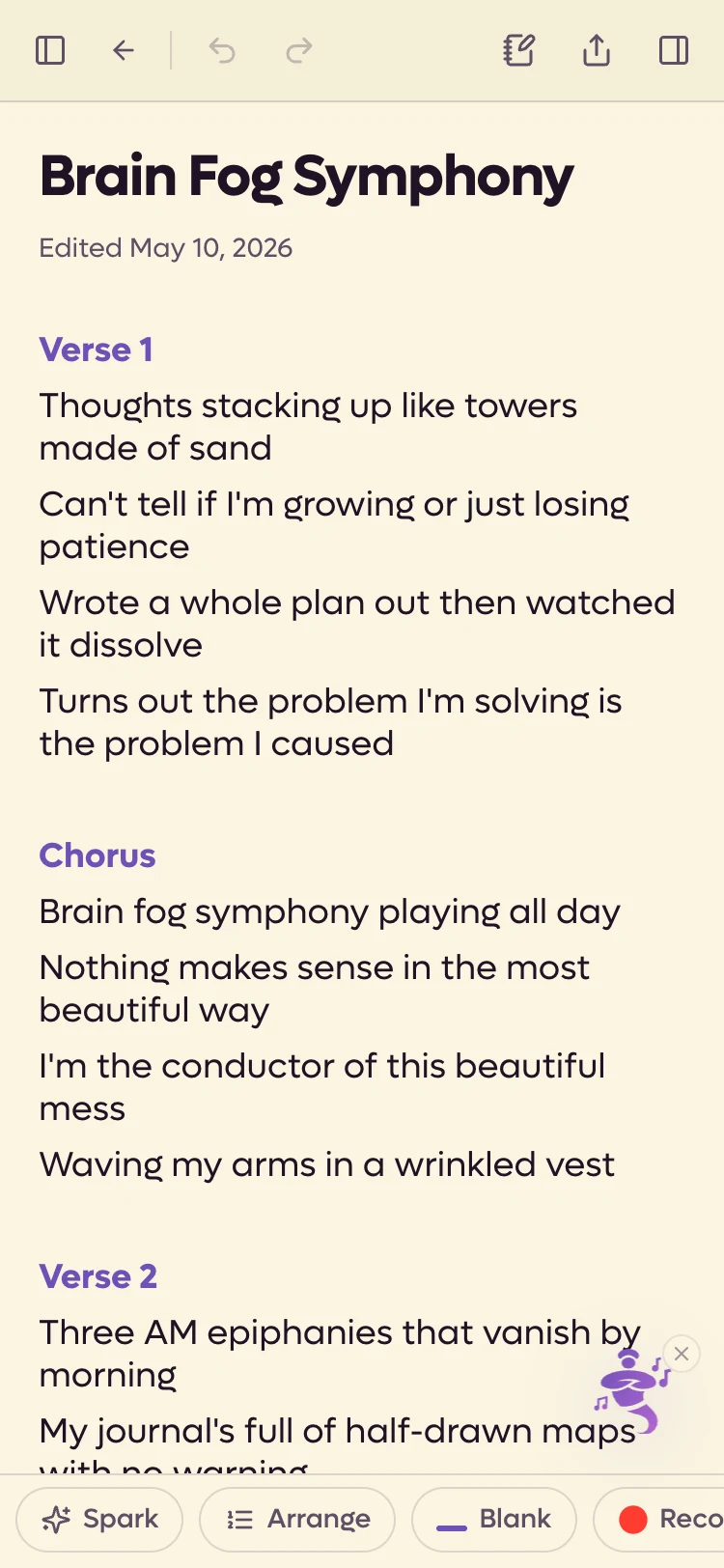
- 1Spark, Arrange, Blank, Record, then Perform and View
- 2Opens Genie
- 3Opens the writing tools
- 4Opens the song panel
- The app bar goes away while a song is open. Songs at the top left is the way back.
- The left panel slides in over the lyrics. The panel button at the top left opens it, and tapping outside closes it.
- The right panel is a sheet from the bottom. The tools button at the top right opens the writing tools. Drag the sheet's handle down, or tap above it, to close it.
- The writing buttons move to a bar along the bottom: Spark, Arrange and Blank, then Perform and View. While you have lyrics selected, the selection tools take that row instead.
- The floating genie in the corner opens the Genie chat. If you have turned it off in Settings (the last tab along the bottom), a Genie button appears at the top right instead.
- The scratchpad has no bar when closed. The scratchpad button at the top slides it in and out.
Narrowing a desktop window past that width folds the side panels away too.