Collaboration
The Master
The agreed version of a shared song. Type in it directly, one writer at a time, or send your best sections to it.
Showing the iOS appweb app
Master is the version of the song you all agree on. It is not anybody's personal tab. Everyone on the song can read it, and everyone can change it, one writer at a time.
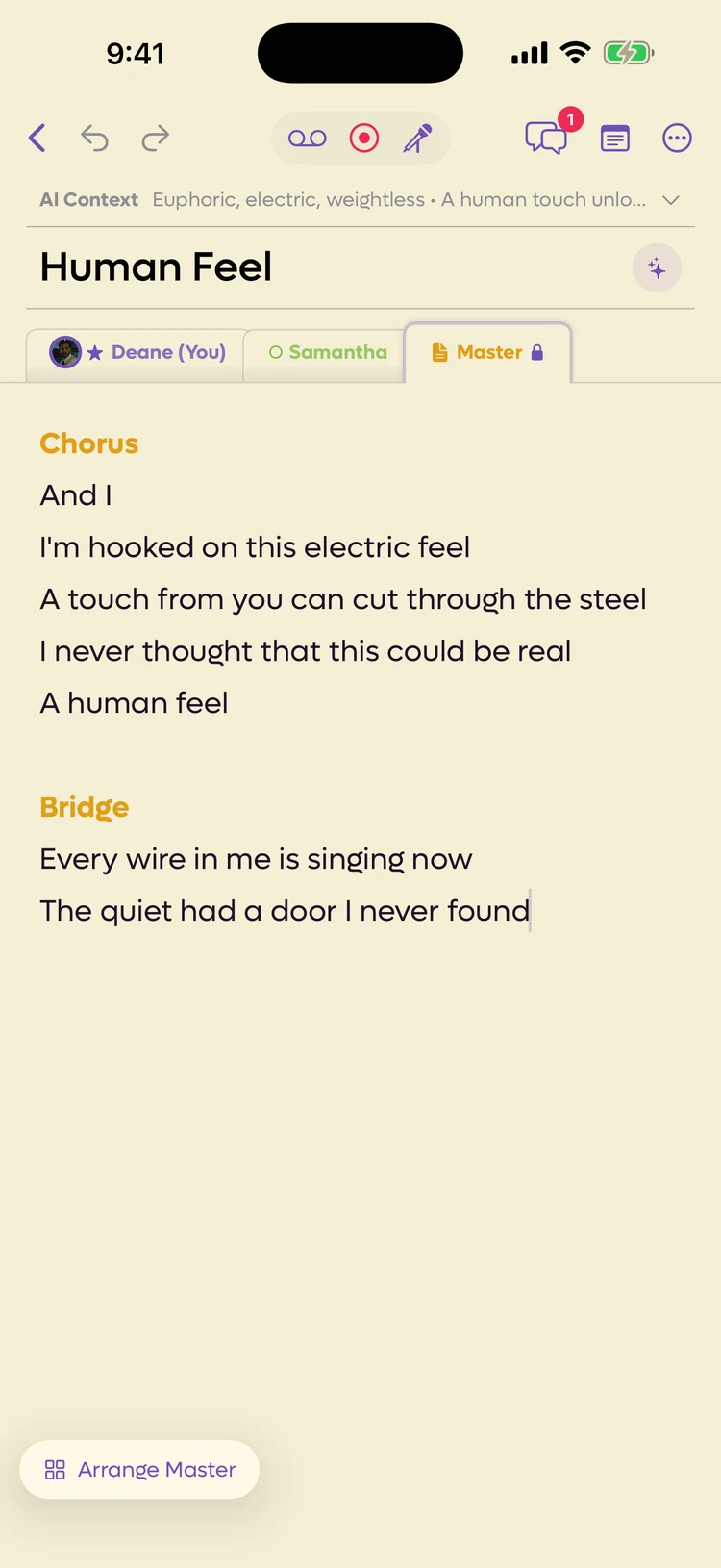
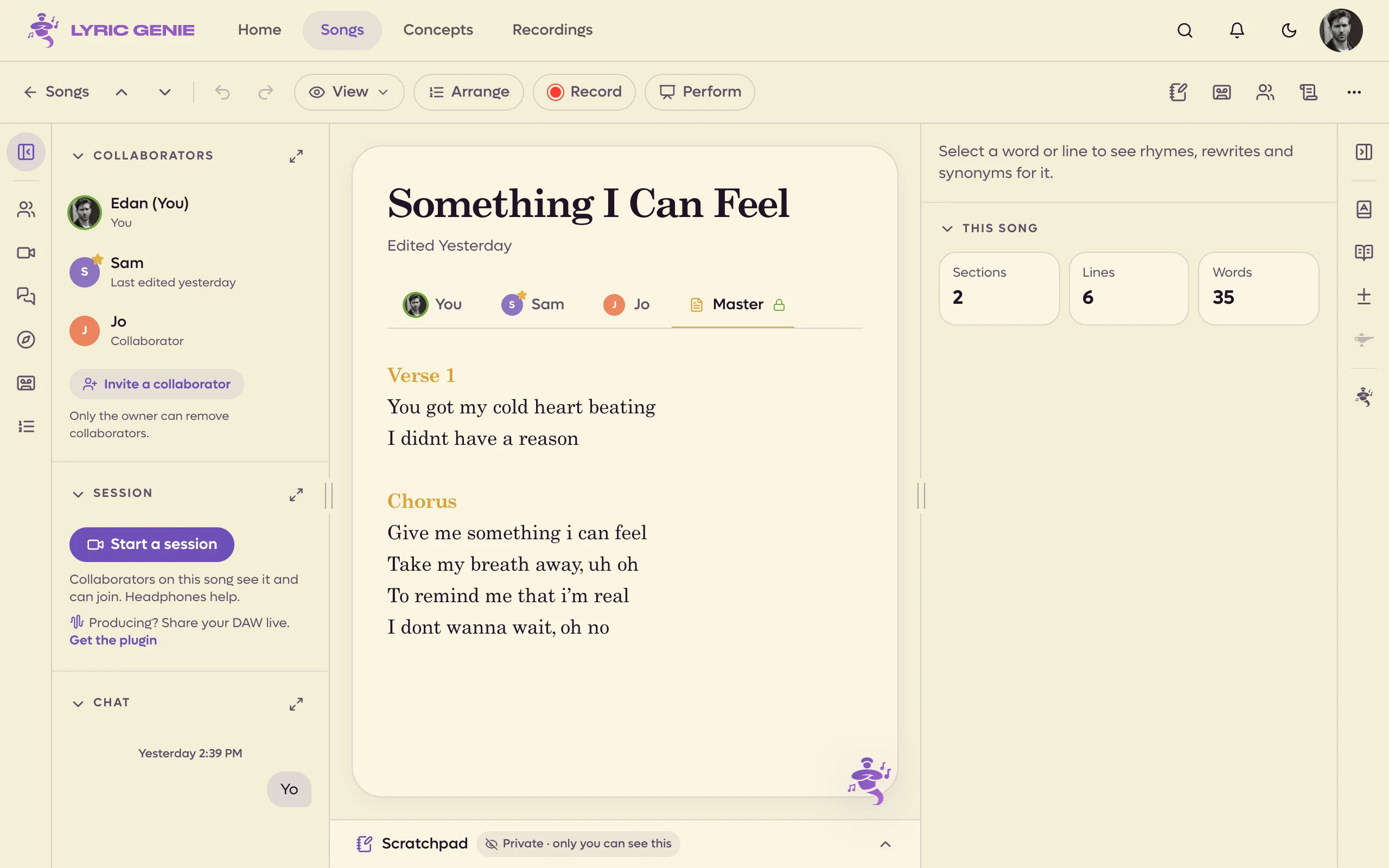
Every shared song has one, at the end of the tab row, in yellow.
 123
123
- 1Always last in the row
- 2Your lock: Master is yours while you type. Tap it to let others in
- 3Arrange Master, for moving whole sections
 12
12
- 1Your lock: click it to let others in
- 2Master, locked to you while you type
Typing in Master#
Tap into Master and type, the same as in your own tab. Web app only On the web, click into it.
One writer at a time#
So two people never type over each other, Master locks to whoever is editing it.
- Tap in and it is yours. A lock appears on the Master tab in your colour. The first time, a short tip explains it.
- Tap the lock to let others in when you are done.
- Or just stop. After 30 seconds without typing, the lock frees itself.
On the web, click into Master to take the lock, and click the lock on the tab to let it go. Switching to another tab, or leaving the song, lets it go too. The first time, the app says Master is locked to you while you edit. Click the lock to let others in.
When someone else is editing#
Everyone else sees the changes appear live, but cannot type. The Master tab shows the editor's lock and the first letter of their name, in their colour.
Tap into Master while it is locked and a note says who has it and, near the end, when it frees up: Sam is editing Master · free in 12 s. Wait for it, or ask them in the chat.
Sending to Master and arranging it wait too. While someone else holds the lock, the app says Sam is editing Master. Try again in a moment.
Sending lines to Master#
You can still send lines to Master from your own tab, which is the quickest way to move a whole verse or chorus across.
Select the lines in your tab and choose To Master in the bar at the bottom of the screen, or open Arrange mode, select what you want, and choose Send to Master.
Select text in the lyrics and click To Master on the selection toolbar. It sends whole lines, so a partly selected line goes in complete. You can send from your own tab, from a collaborator's tab and from the Scratchpad. Arrange mode has Send to Master too.
The lines go to the end of Master, after a blank line, exactly as you selected them. Nothing asks which section they are. Then the app switches to Master so you can see them, and you move them where they belong by typing, or with Arrange Master.
If someone else is editing Master at that moment, the send waits: the app says Sam is editing Master. Try again in a moment.
Lines a collaborator sends you can go straight to Master too: Add to Master on their card in the chat. See Sending lines.
Reordering and removing#
Master has its own arrange mode. It works in whole sections rather than individual lines, because Master is about structure.
On the Master tab, tap Arrange Master in the bar at the bottom of the screen. ✕ Arrange above the bar closes it.
On the web it is the Arrange pill in the song bar, as on any other tab. On Master it works in whole sections: a checkbox sits on each header, clicking any line selects its section, and there is no drag-to-reorder or Duplicate.
From there you can Move Up and Move Down to reorder, Delete a section, or Send to Me to pull one back into your own tab to work on privately.
What reads from Master#
Master is what the rest of the app treats as the real song.
- Perform opens on Master by default when one exists.
- Lyric sheets default to Master, though you can pick any writer's tab instead.